
Direct Composite Restoration Guides With Formlabs SLA 3D Printers
This application guide is a step-by-step walkthrough of the workflow for producing direct composite restoration guides with Formlabs IBT Flex Resin and Formlabs Dental 3D printers, specifically focusing on the production of guides used for direct composite technique (injected or pressed). This guide was developed in collaboration with Digital Smile Design (DSD). Always consult the official Manufacturing Guide and Instructions for Use for the absolute requirements.
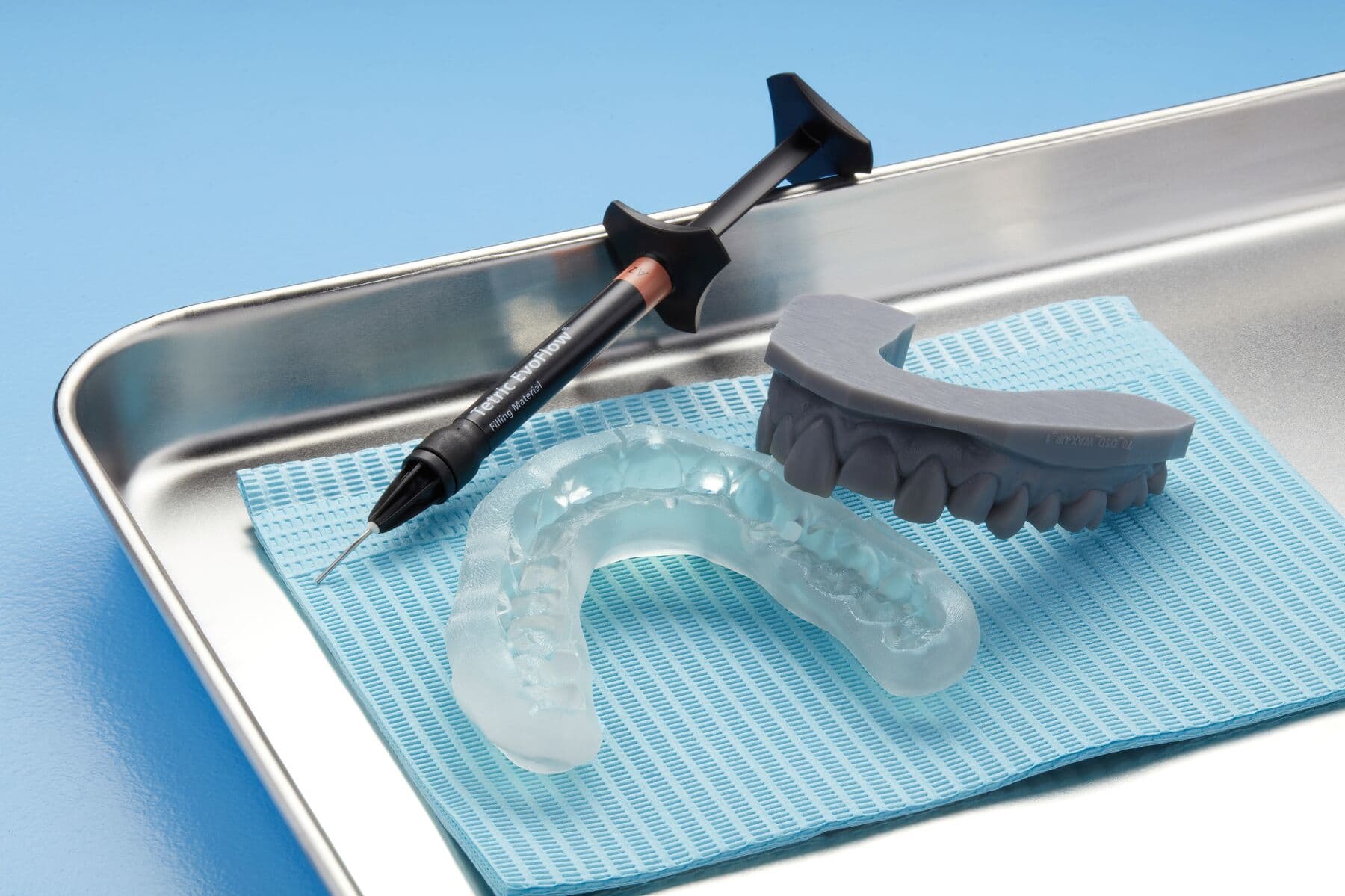
IBT Flex Resin is a flexible, tear-resistant material for directly printing guided trays or indexes for composite restorations. Equipped with high flexibility, tear resistance, and translucency, this material's exceptional printing accuracy perfectly replicates digital designs, from a single restoration to a full smile, saving valuable technician time while delivering consistent, predictable outcomes.
Direct Composite Restoration Guides With Formlabs SLA 3D Printers
This application guide is a step-by-step walkthrough of the workflow for producing direct composite restoration guides with Formlabs IBT Flex Resin and Formlabs Dental 3D printers, specifically focusing on the production of guides used for direct composite technique (injected or pressed). This guide was developed in collaboration with Digital Smile Design (DSD). Always consult the official Manufacturing Guide and Instructions for Use for the absolute requirements.
IBT Flex Resin is a flexible, tear-resistant material for directly printing guided trays or indexes for composite restorations. Equipped with high flexibility, tear resistance, and translucency, this material's exceptional printing accuracy perfectly replicates digital designs, from a single restoration to a full smile, saving valuable technician time while delivering consistent, predictable outcomes.
In collaboration with:

Workflow Requirements
Needed From the Dentist
-
A physical or digital impression of the patient's dentition
Required Hardware and Materials
Made by Formlabs:
-
Compatible Formlabs SLA 3D printer
-
Form 4 Flex Build Platform (or compatible Build Platform)
-
Compatible Resin Tank (and Mixer if applicable)
Made by Third Parties:
-
Intraoral scanner
-
Desktop scanner (if a physical impression or model are made)
-
Camera for patient documentation (picture and video)
-
Cutting and finishing tools (if printing on supports)
-
Opaque or amber containers for appliance storage
-
CBCT scanner (optional, depending on CAD software)
Required Software
Made by Formlabs:
-
PreForm Dental Software (free) 3.32 or higher
Made by Third Parties:
-
Dental design software or outsourcing to a dental design provider
1. Scan
Dental design software requires a digital impression of the patient’s anatomy in order to design the direct composite restoration guides or indexes. To acquire this data, scan the patient directly with a 3D intraoral scanner, or scan a physical impression or poured model with a desktop 3D scanner.
While photographs and/or CBCT data are optional, some design software supports this data, which can be extremely useful for case planning and setup, especially in cases where there is a need for extensive smile design, such as in full-mouth rehabilitation cases.

2. Design
2.1 Design the Direct Composite Restoration Guides
In this section we will outline general design parameters and best practices for NEMO Smile design 3D software (NemoTec Company, Madrid, Spain). The fundamentals and recommendations can still be helpful for other treatment and planning software and should be reviewed.
You can also send the digital impression and requirements to a dental CAD outsourcing provider, like a dental design center or specialized dental laboratory, to create the appliance and manufacturing file.
The production of direct composite restoration guides is done after designing the patient’s ideal smile, planning the ideal treatment, presenting this to the patient, and obtaining their approval. After these steps are completed, import the intraoral scan into the CAD software and design the final restoration/s or wax-up. Once the design is complete, it’s important to have two digital files:
-
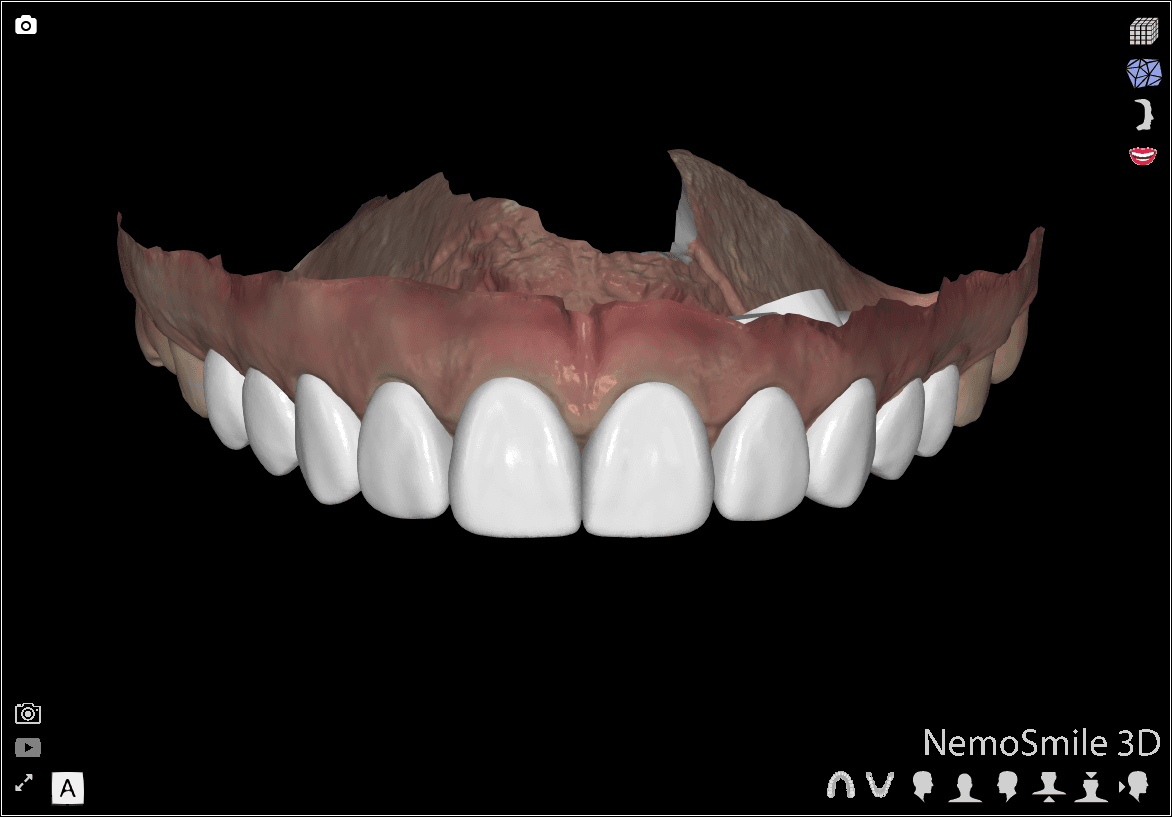
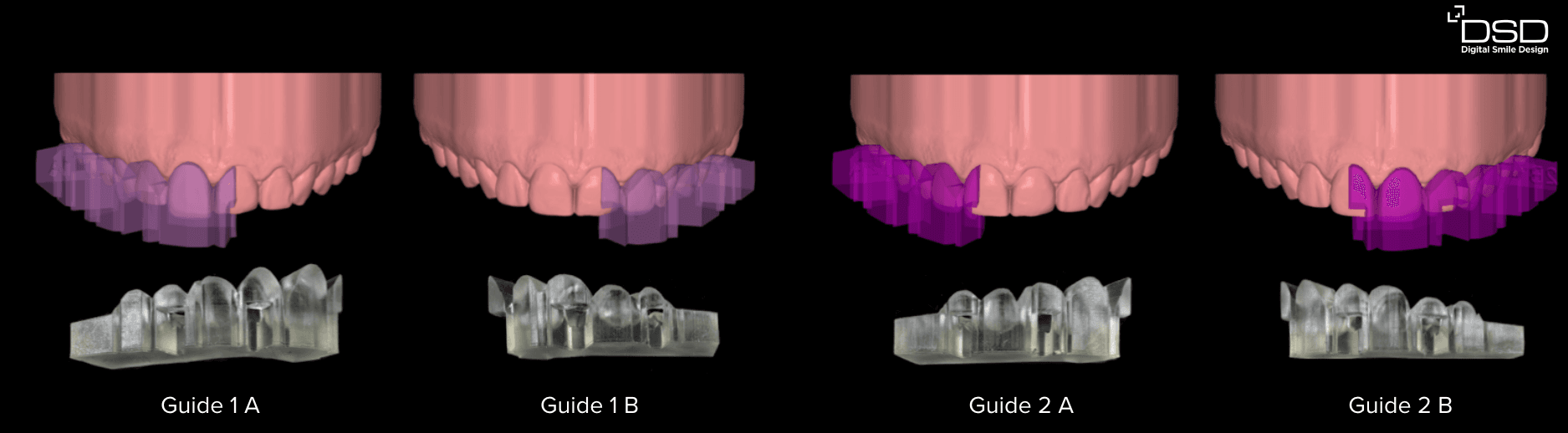
Direct Design 1: The wax-up is visible for every other tooth and the initial clinical situation is visible for the remaining teeth.
-
Direct Design 2: The wax-up is visible for all teeth.
Next, you need to define whether you will use the guides or indexes for injectable or pressed composite as the design and quantity of the trays will vary depending on the technique chosen.
For DSD Direct Design, the indexes designed in your CAD software can be produced in two full arches for the injectable technique (half designed and fully designed) or in sections if used for the pressed composite technique.
Note:
If you are looking to print the index for mock-up procedures, you can refer to Protocol 2 of The Mock-Up: An Ultimate Guide to Mastering All 3D Printing Options.
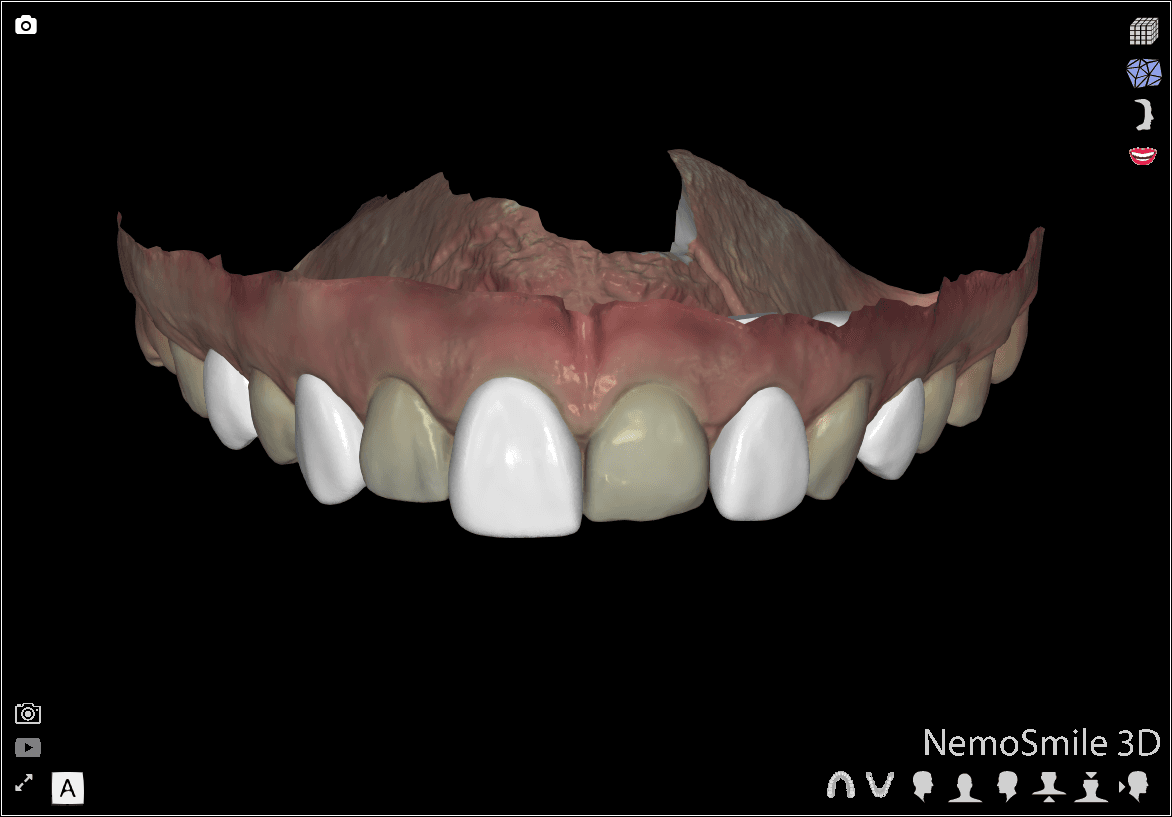
DSD Direct Design 1
DSD Direct Design 2 (Images from DSD Planning Center)
Tray design and manufacturing for the pressed direct composite technique. (Images from Dr. Felipe Saliba, DSD KOL Brazil)
Note:
Using NEMO Smile design 3D software, we recommend designing appliances with a flat surface that can be printed directly on the Build Platform.
2.2 Construction Recommendations and Requirements
The indexes’ design will vary slightly depending on the technique chosen. When designing the indexes for the injectable composite technique, create a 1.7 mm diameter hole and channel connecting the base of the tray to the incisal edge of the tooth being restored. These holes will enable the insertion of the tip of the flowable composite syringe for injection. Indexes used for the pressed composite technique do not need holes or channels in their design.
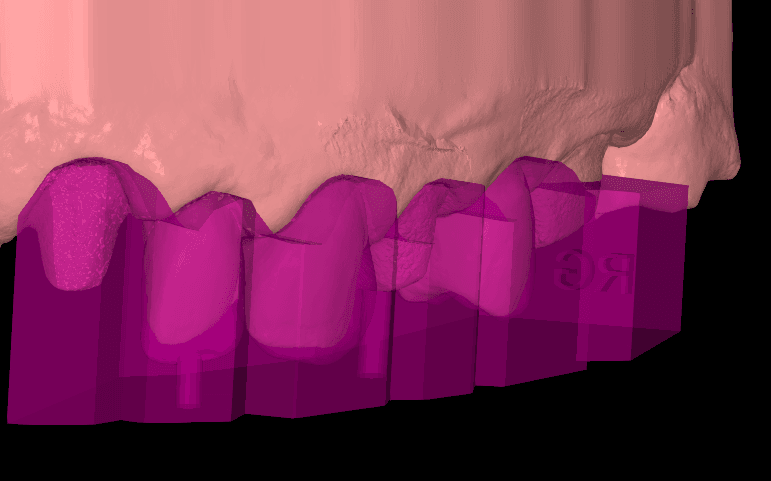
Index designed for injectable composite technique with injection holes and channels. (Image: DSD Planning Center)
In order to have the correct rigidity, trays should have sufficient thickness. DSD recommends 4 mm as the ideal thickness on all surfaces for indexes for both injectable and pressed composite techniques.
Adding windows to the guides will enable checking the fit of the appliances upon the dentition and guarantee optimal positioning regardless of the technique chosen. These elements shall be added to the teeth that will not be restored with the respective guides.
When designing the trays, no offset parameters are needed. The digital wax-up already establishes the correct space for injecting or pressing the composite.
The extension of the tray shall adapt to the gingival marginal line.
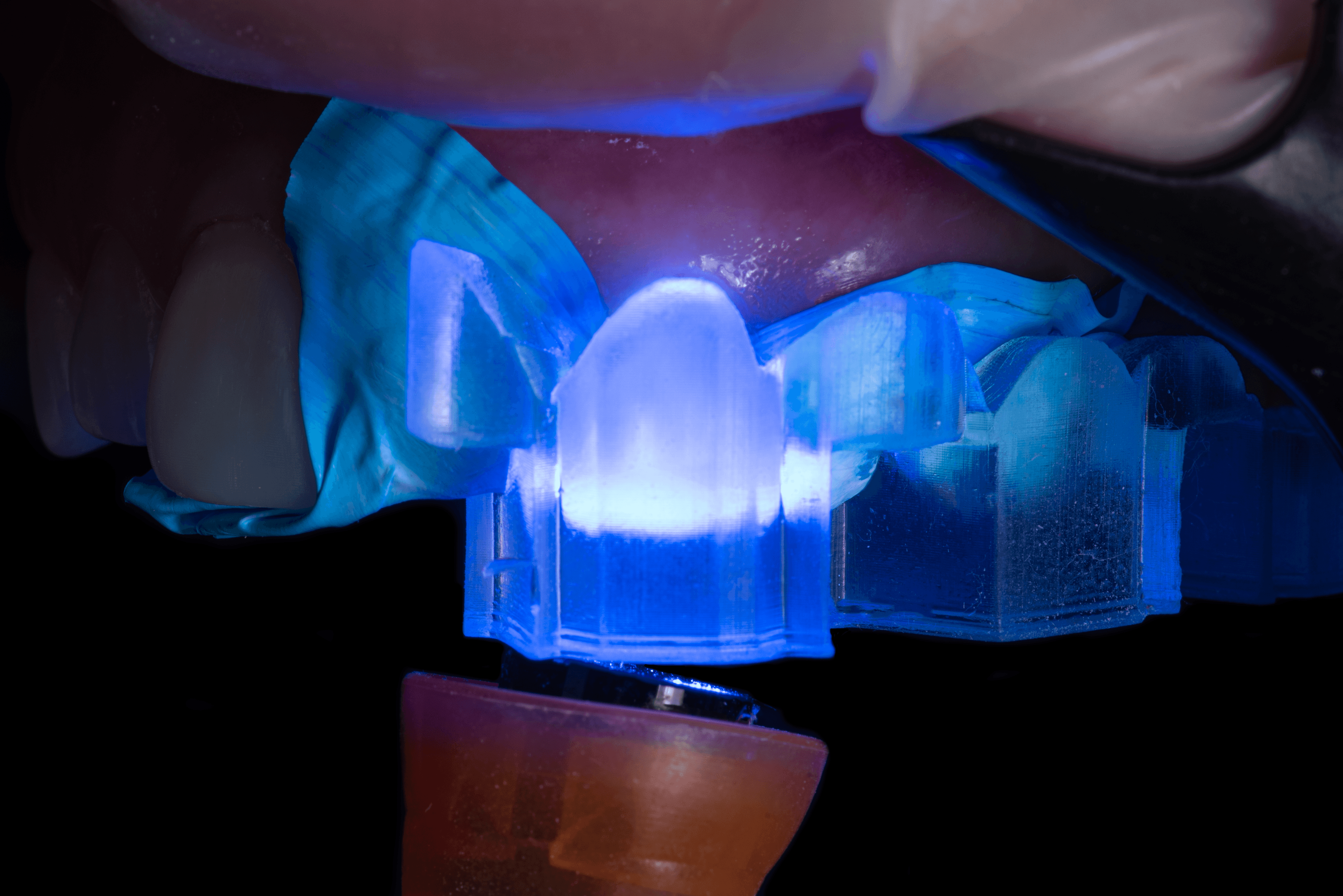
Dr. Felipe Saliba, DSD KOL Brazil (Image provided by the DSD Planning Center)
Note:
The minimum thickness recommended for printing parts in IBT Flex Resin is 1 mm. Increasing the thickness might be needed for specific situations or appliances.
Note:
For design recommendations for printed indexes for mock-ups, please refer to Protocol 2 of The Mock-Up: An Ultimate Guide to Mastering All 3D Printing Options.
2.3 Export the STL File
Once the case has been designed to specification, manufacturing can begin. The majority of dental design software generates a manufacturing file in STL format. Locate the file and move it into the print preparation software, PreForm Dental.
3. Print
Note:
Use PreForm version 3.32 or higher and firmware 2.2.0 or higher for best results.
3.1 Import the File(s)
Import or open the design file(s) by dragging them into PreForm, or use the File menu to locate them on your computer or network.
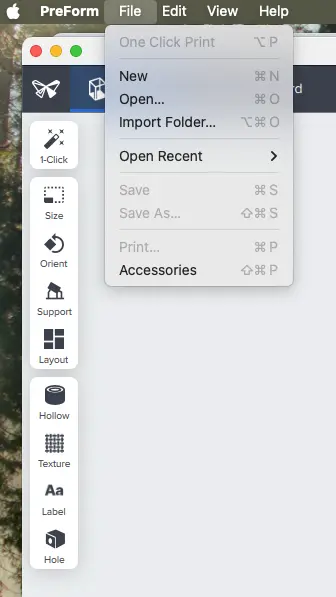
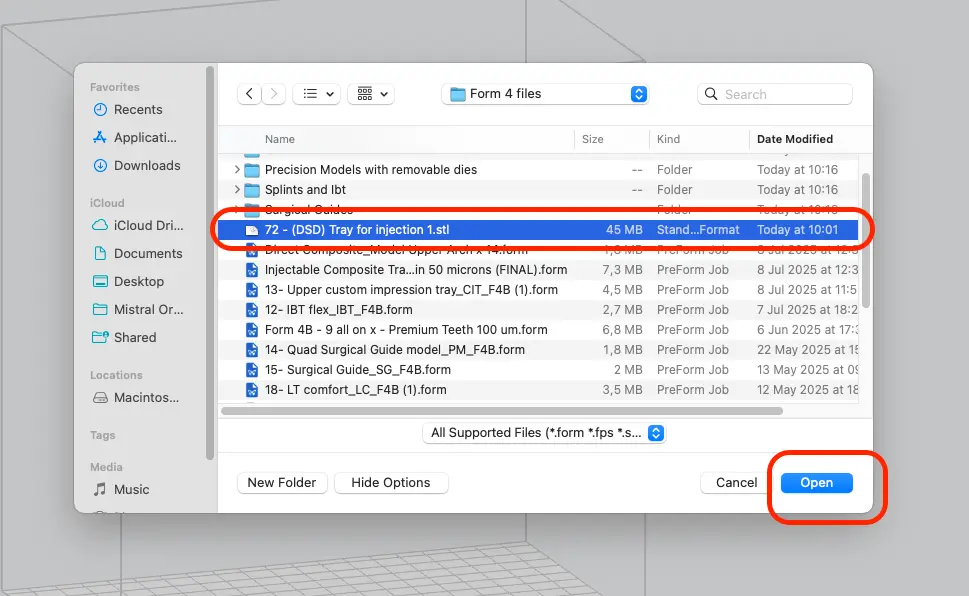
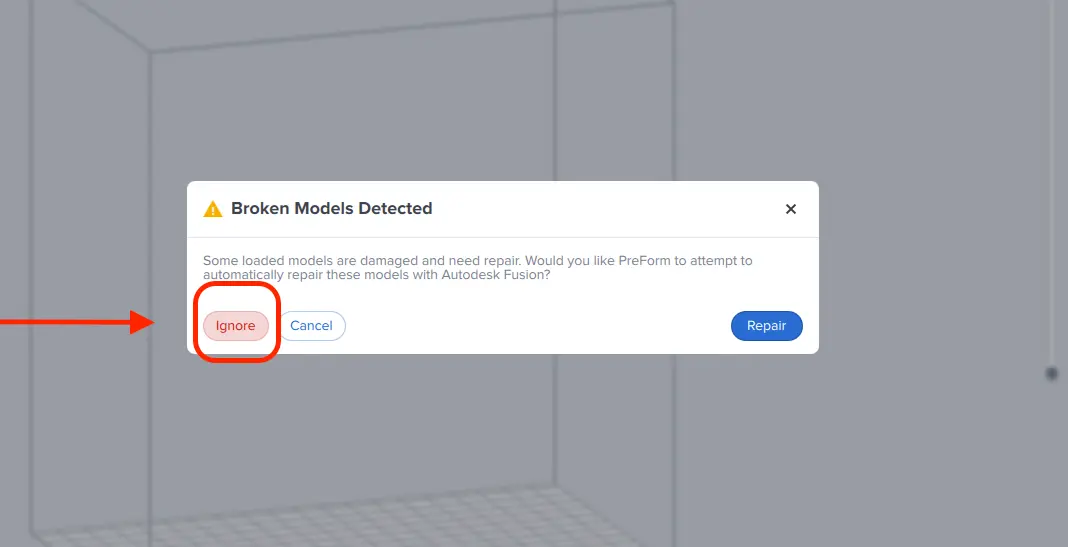
If you are alerted with Broken Models Detected, do not use the repair function as it might corrupt your file by closing the intaglio side. Instead, click on Ignore.
3.2 Material and Layer Height Selection
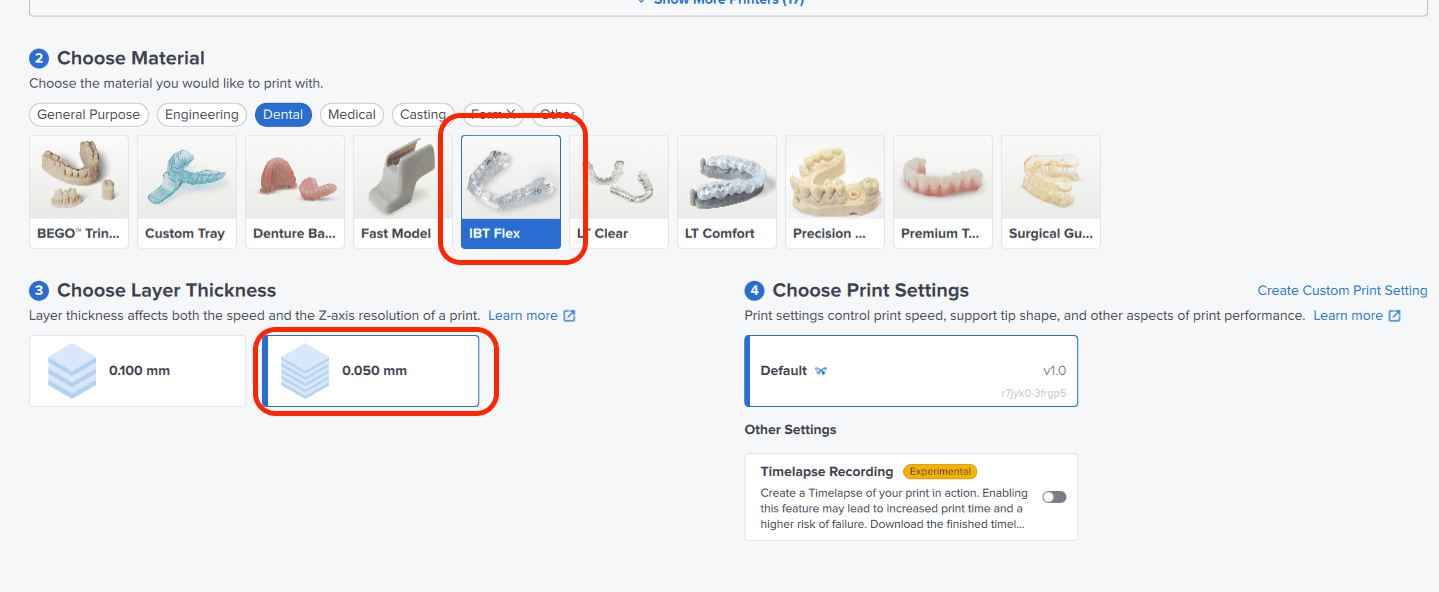
Select the material for printing by clicking the printer box in the Job Setup menu on the right-hand side.
Locate IBT Flex Resin in the material dropdown.
For direct composite restoration guides, select 0.05 mm layer height setting for the highest accuracy and optimal transfer of the digital design. You can also select 0.1 mm for faster prints, but there will be more visible layer lines transferred from the tray to the clinical situation.
Note:
0.05 mm layer height setting is only available for Form 3B/+ and Form 4B.
3.3 Orientation
3.3.1 Positioning Appliances
If you designed the appliance to have a flat surface, you can adhere the bottom surface directly to the build platform.
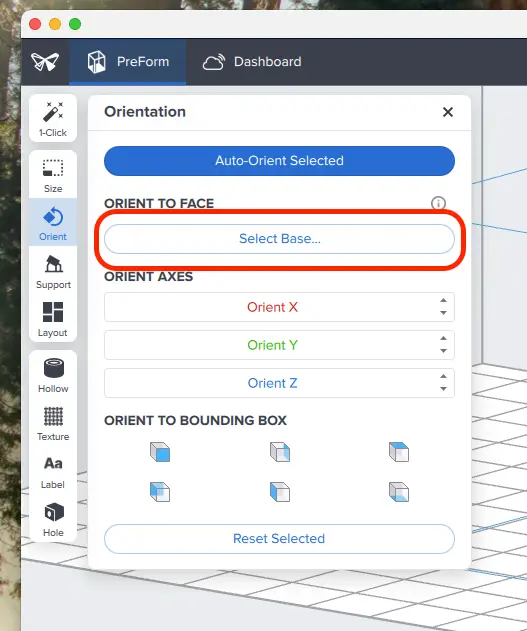
First, open the Orientation tool and click the Select Base button.
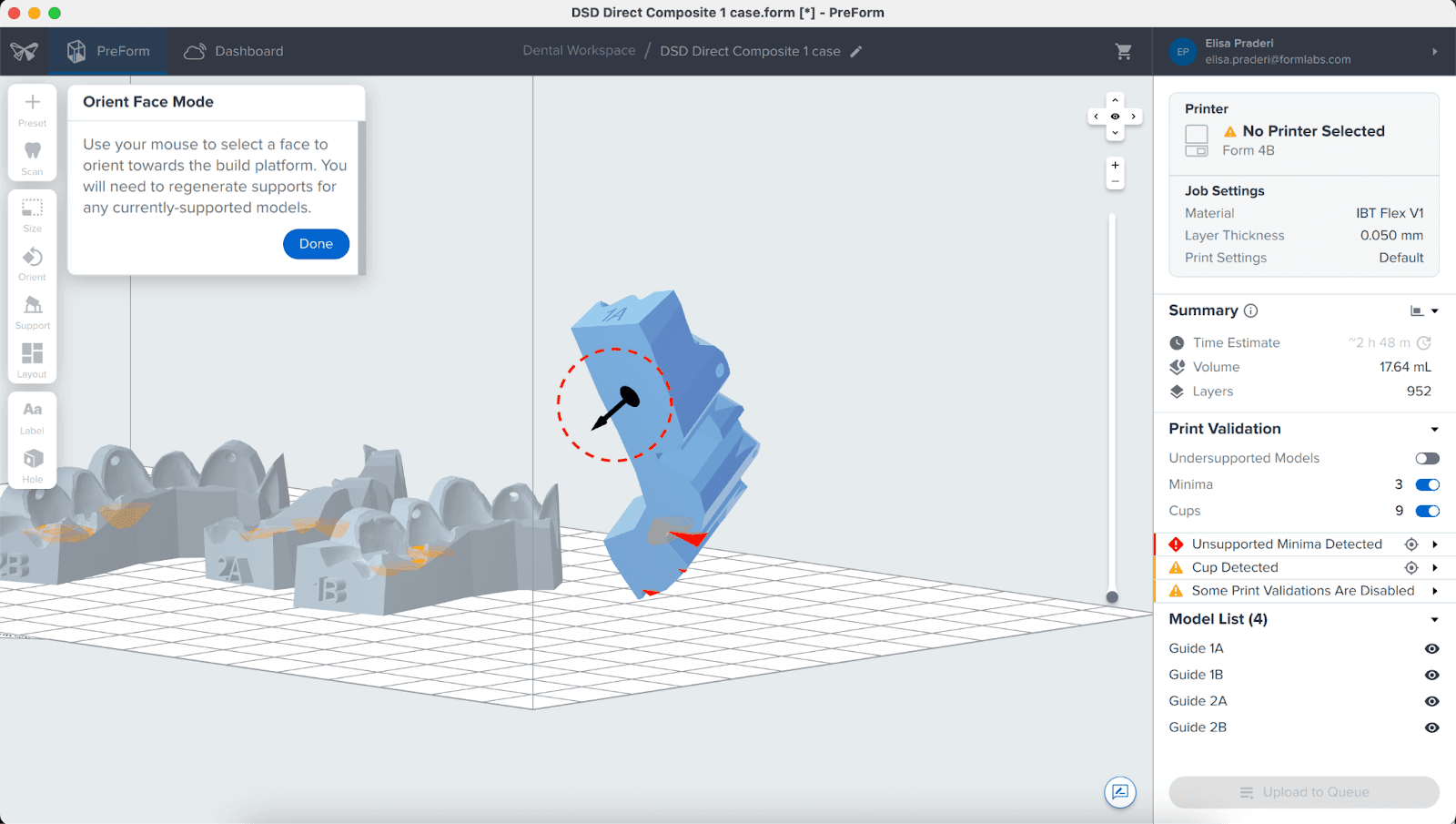
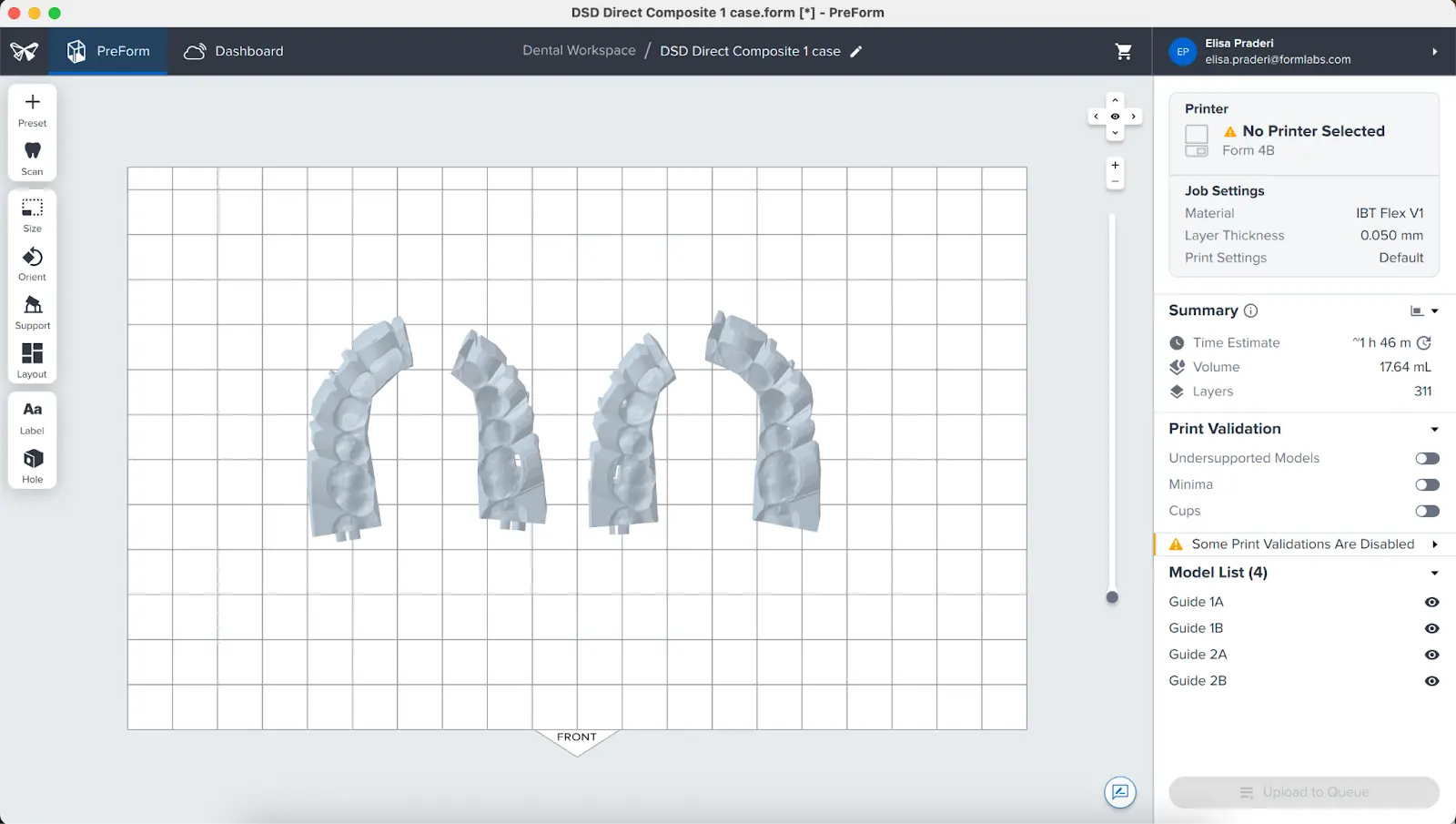
Next, click the bottom surface of the part to adhere it to the build platform.
3.3.2 Angulation
Proper part orientation ensures part accuracy and fitment.
Always position the appliance with the intaglio surface facing away from the build platform. The part should be parallel to the build platform or, at most, have a 40° angle, with the anterior section facing toward the build platform.
Note:
Printing times vary depending on object orientation and job setup.
3.4 Generate Support Structures
Depending on the overhanging surfaces, it is possible to print appliances directly on the build platform without any support structures.
3.4.1 Automatic Support Generation
For cases where supports are needed, open the Supports tool on the left side of PreForm and click Auto-Generate Selected.
If adding supports to an appliance that should be printed directly to the build platform, change the Raft Type to None in the Supports tool.
Note:
Uncheck the Internal Supports button to prevent the generation of unnecessary support structures.
3.4.2 Manual Support Editing
Once supports are generated, verify their locations. If a support touchpoint is not in an ideal location, you can edit its location by clicking the Manual Placement button in the Supports menu.
Click on a support touchpoint sphere to remove it. Click on areas without supports to add touchpoints.
PreForm will indicate in red which areas might require additional support.
Under the Job Setup menu bar on the right side of the screen, confirm that Printability shows a green thumbs-up.
When printing parts directly on the build platform, you will see a printability warning. If the part is snapped against the build platform as outlined in the above section, it is okay to ignore this error.
Note:
With internal supports turned off and correct orientation, there is typically no need to edit supports.
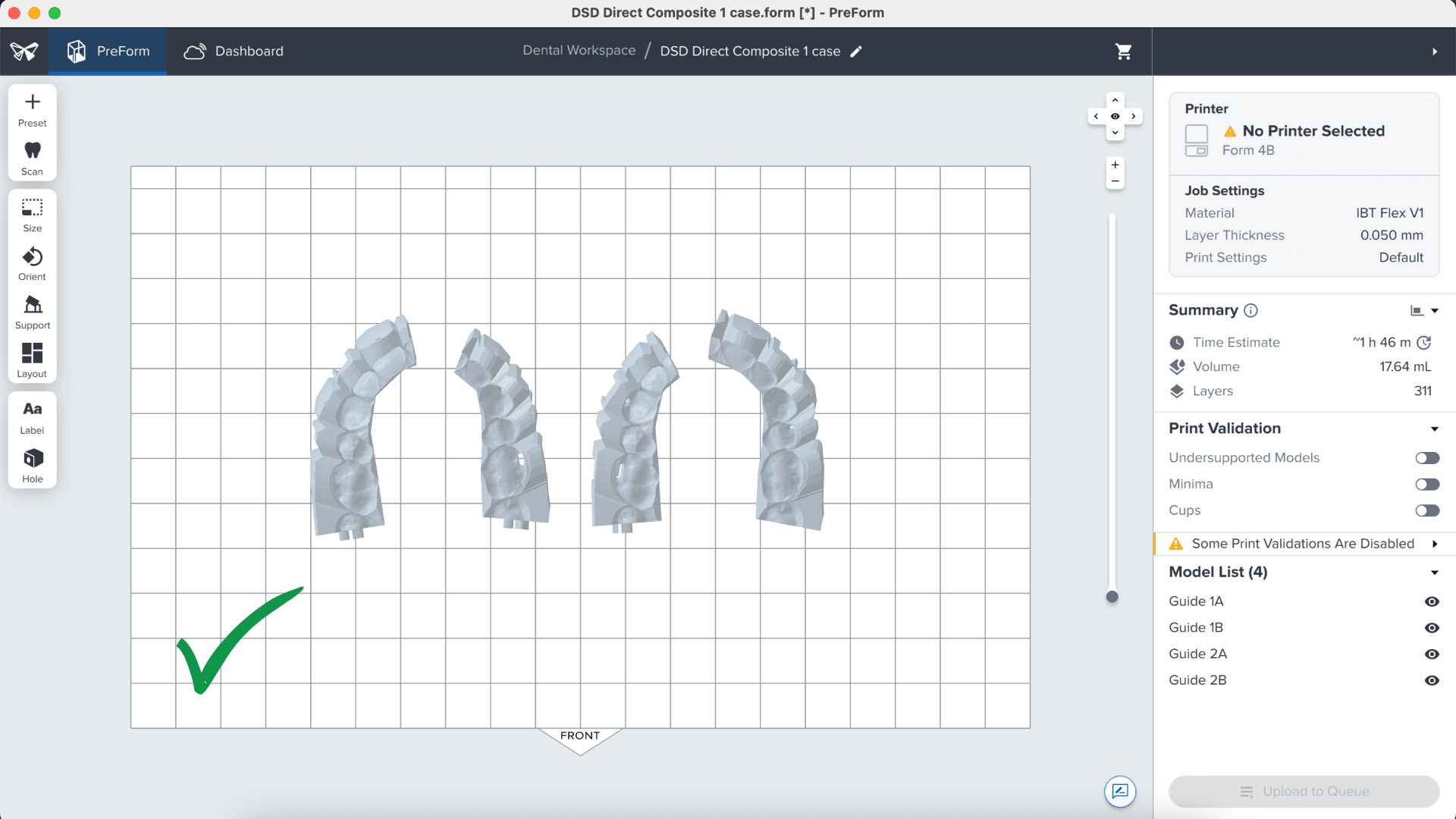
3.5 Printing Layout
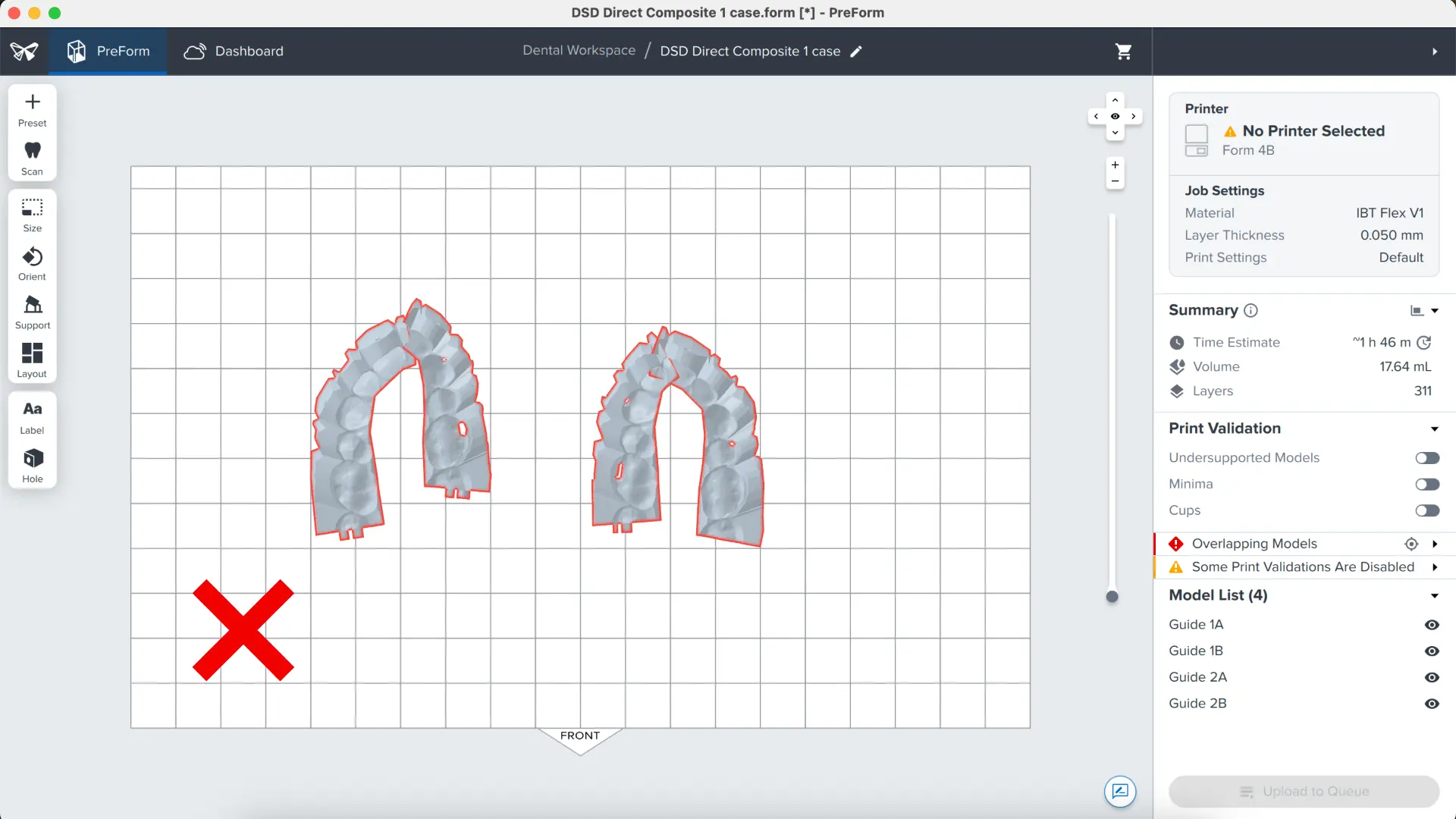
Whether you are printing on support structures or directly on the build platform, position the parts so they do not overlap each other. Overlapping parts will be outlined in red.
To rotate the part while it is selected, click and drag the outer edge of the orientation sphere.
To move the part, click and drag anywhere on the part.
Once the layout is complete, the job is ready to send to the printer.
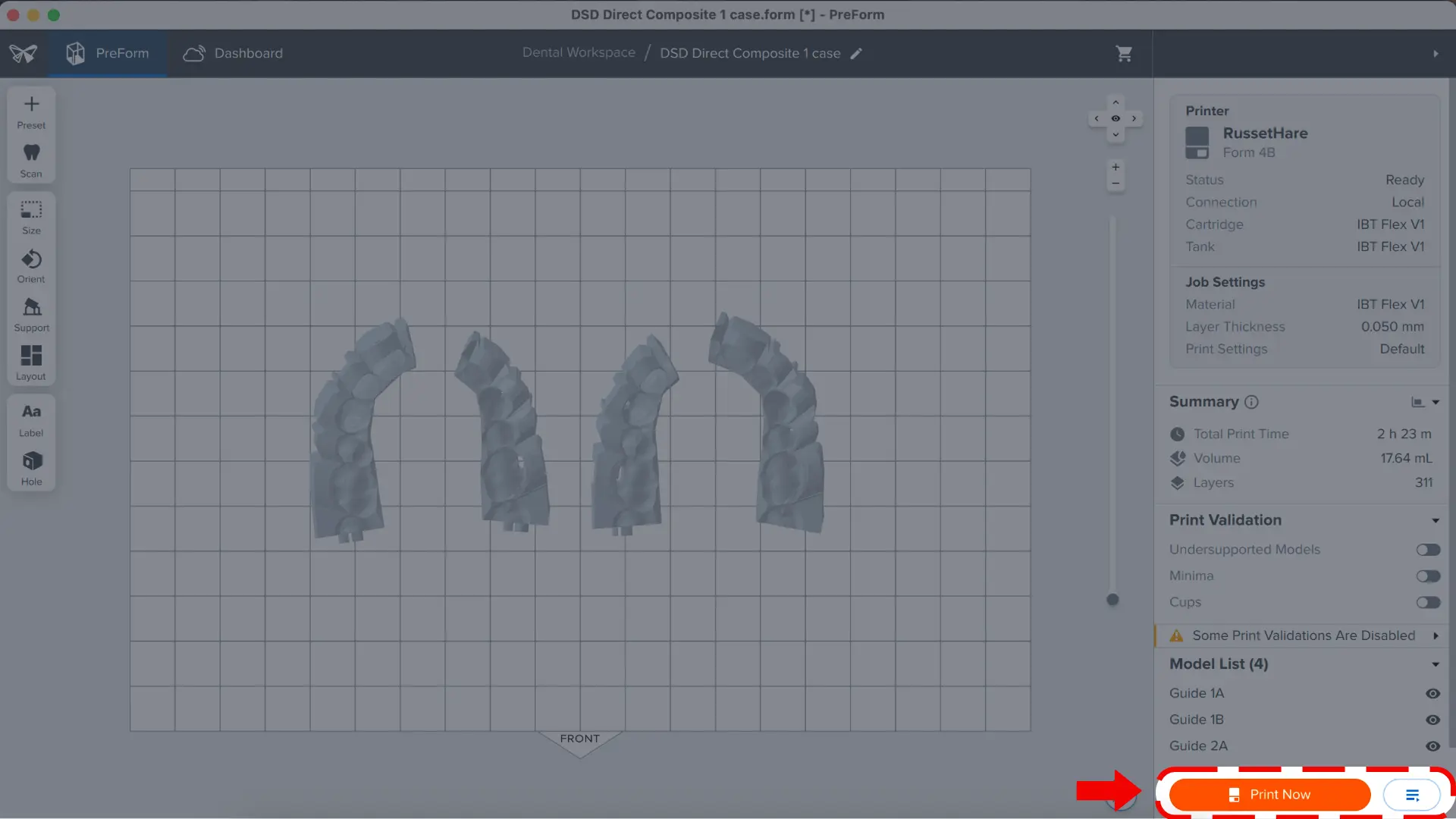
3.6 Transferring the Job to the Printer
Send the job to the printer by clicking the orange Print Now button on the lower right side of the screen. The print job will be sent to the printer.
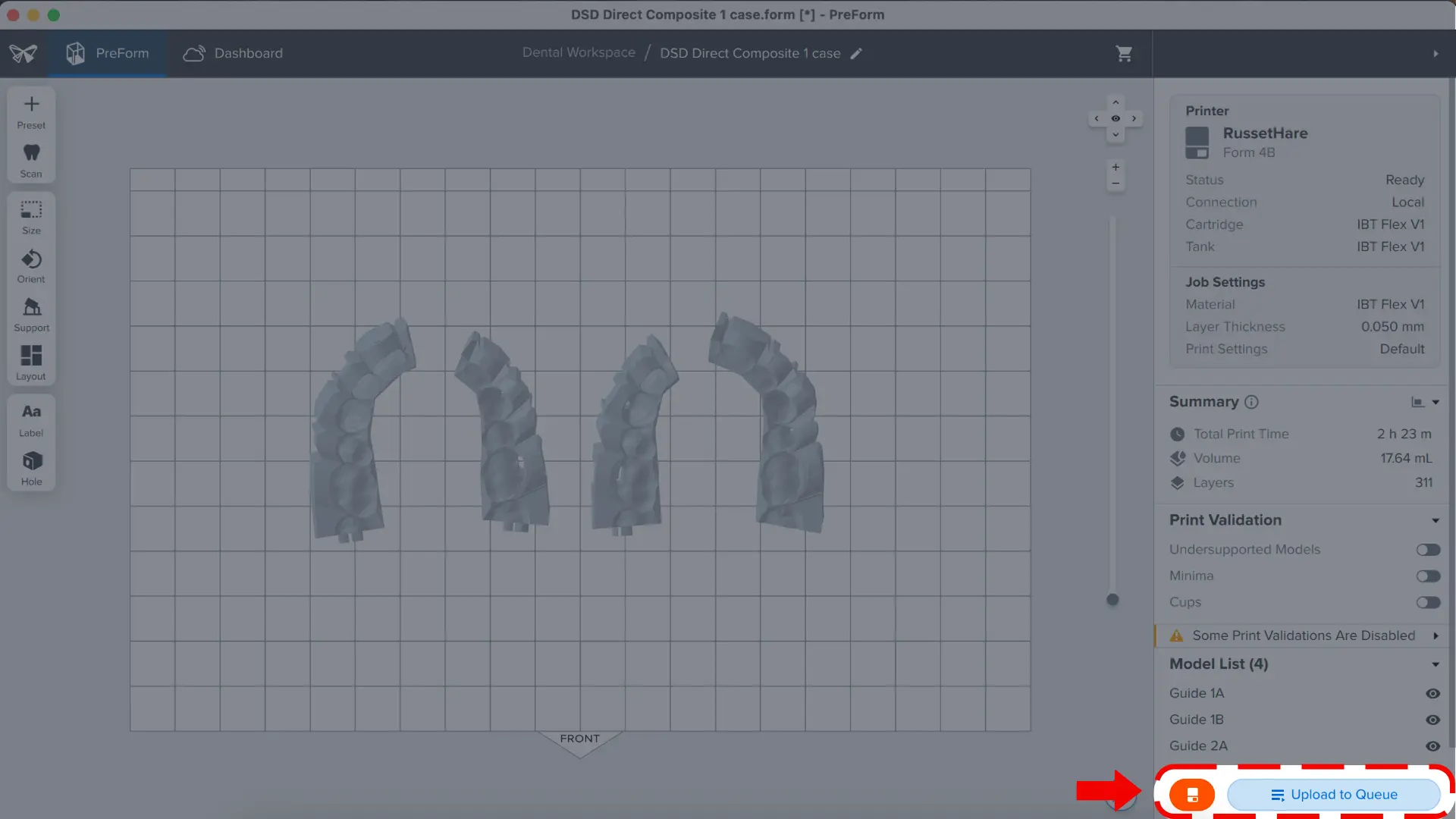
The print job can also be added to the print queue by clicking the icon to the right side that says Upload to Queue.
3.7 Set up the Printer
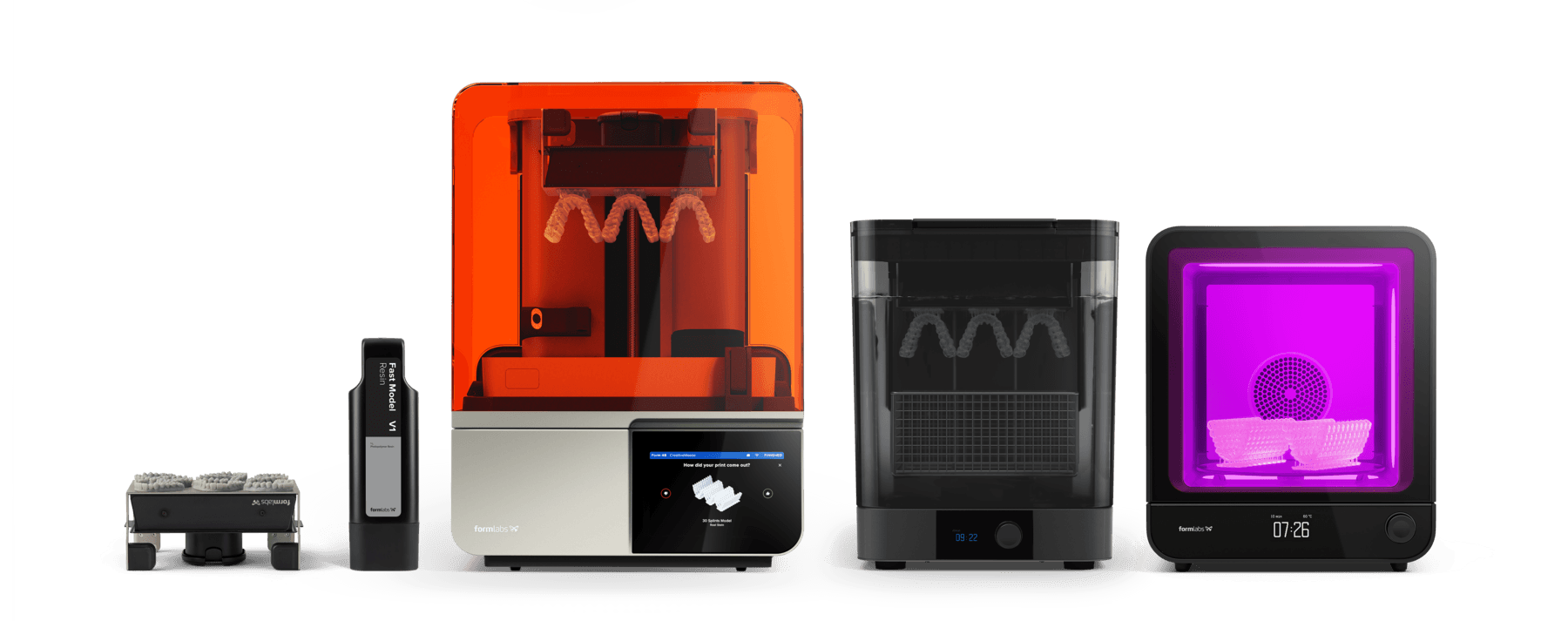
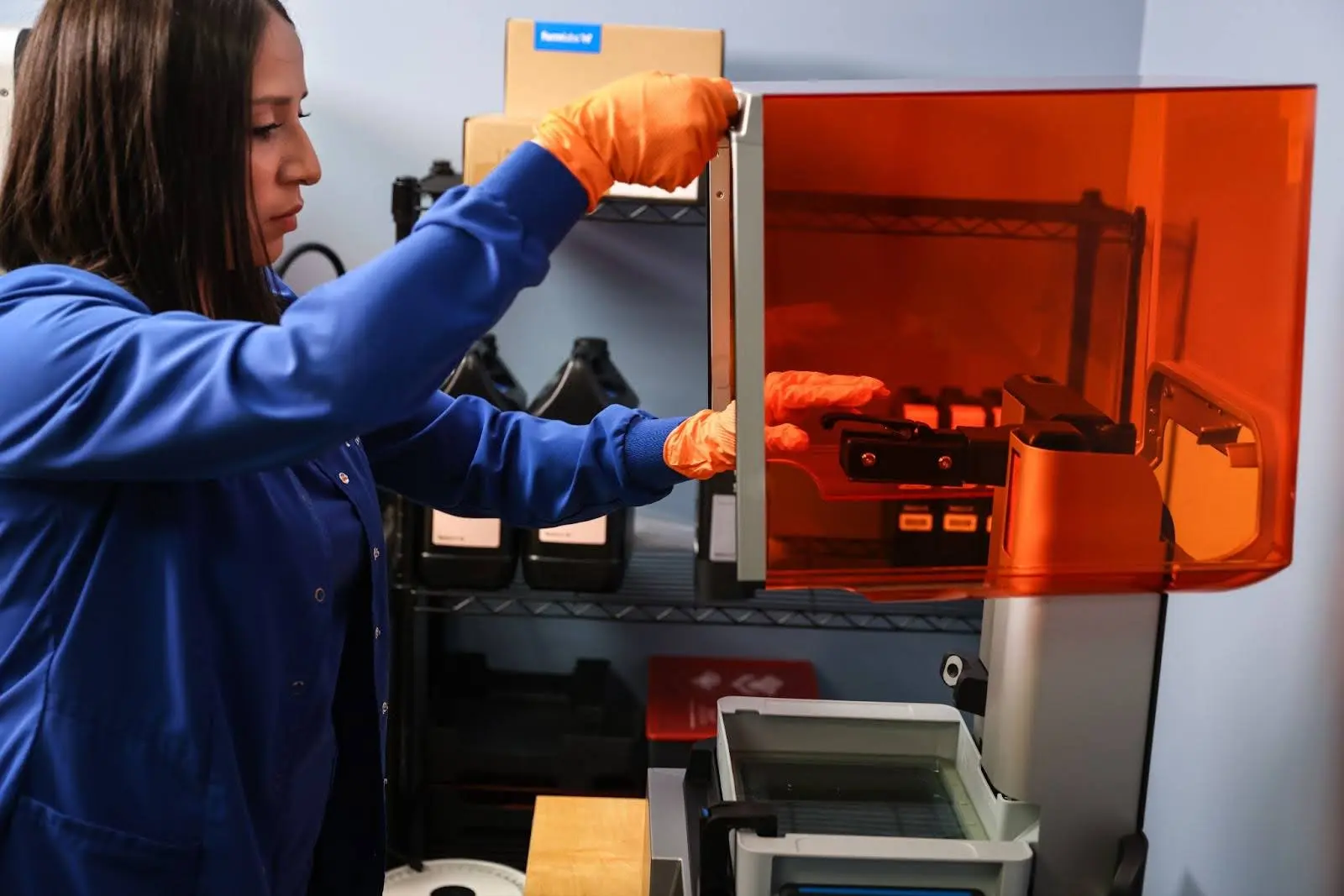
Shake the IBT Flex Resin cartridge and then insert the cartridge, a build platform, and a compatible resin tank into the Formlabs 3D printer.
-
Begin printing by selecting the print job from the printer’s touchscreen.
-
Follow any prompts or dialogs shown on the printer screen.
-
The printer will automatically complete the print.
If starting with an empty resin tank, save time by manually pre-filling the tank by pouring in resin directly from the cartridge.
Note:
Please verify printer and resin compatibility on the Formlabs support site before printing.
Note:
For full compliance and biocompatibility, IBT Flex Resin requires a dedicated resin tank, build platform, Form Wash, and Finish Kit.
4. Post-Processing
Note:
Always use gloves when handling uncured resin and parts.
4.1 Part Removal
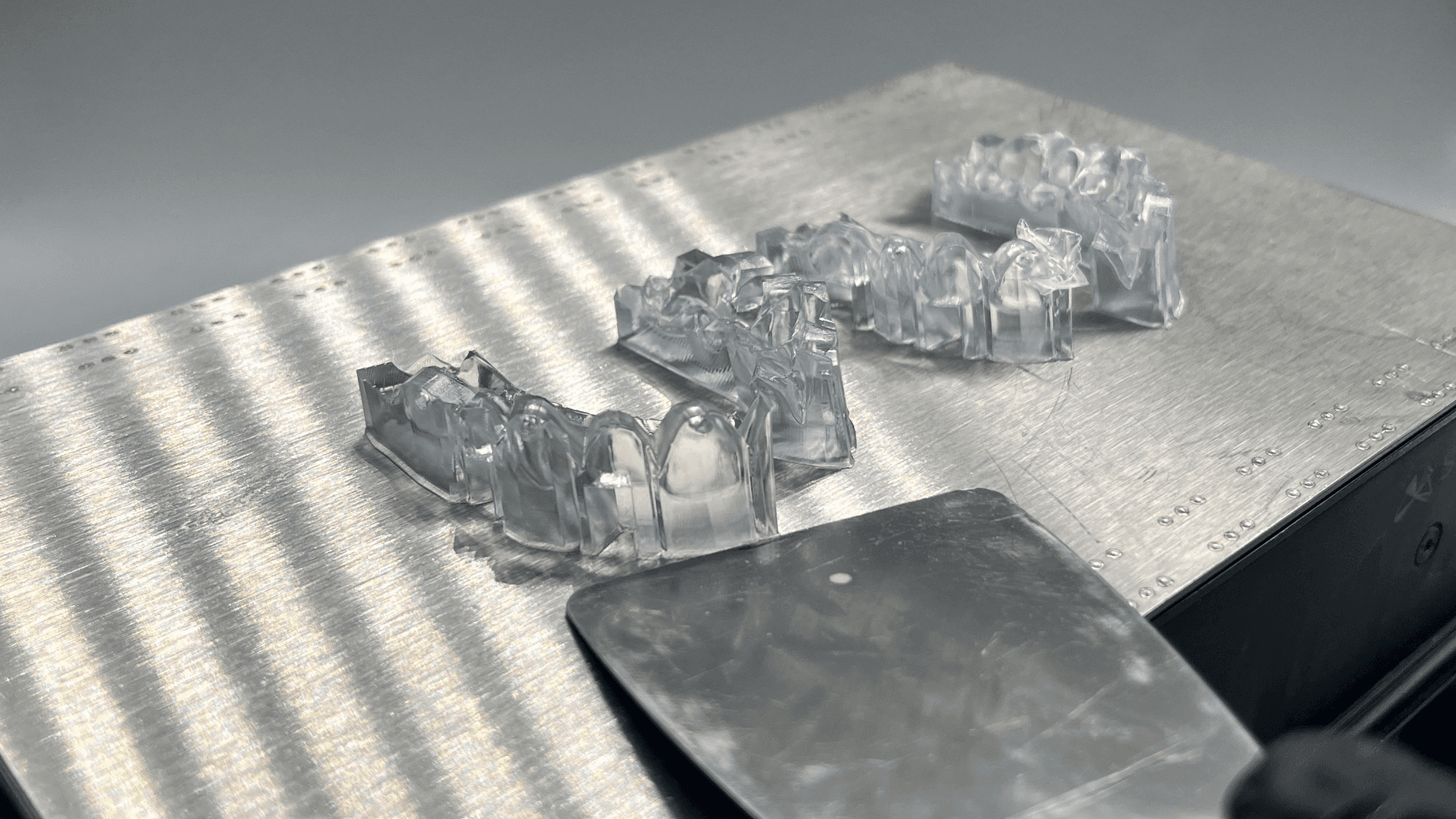
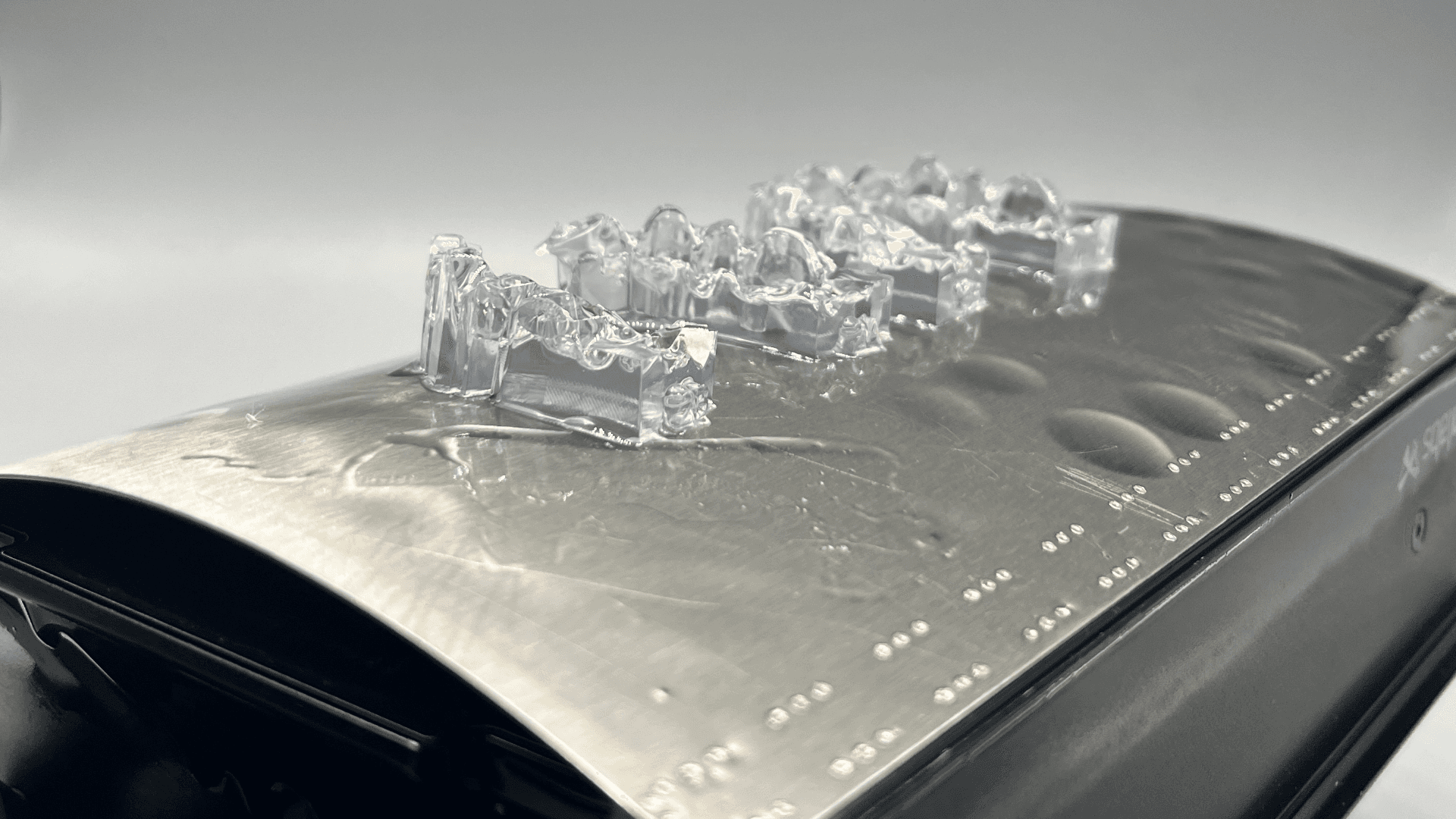
Remove printed parts from the build platform by wedging the part removal or scraping tool under the part raft and rotating the tool.
Note:
Due to the flexibility of parts printed with IBT Flex Resin, they might not be released as easily as more rigid materials when using the Form 4 Flex Build Platform.
4.2 Washing
Precautions
-
When washing the printed part with solvent, it should be in a properly ventilated environment with protective masks, gloves, and glasses.
-
Expired or unused IBT Flex Resin shall be disposed of in accordance with local regulations.
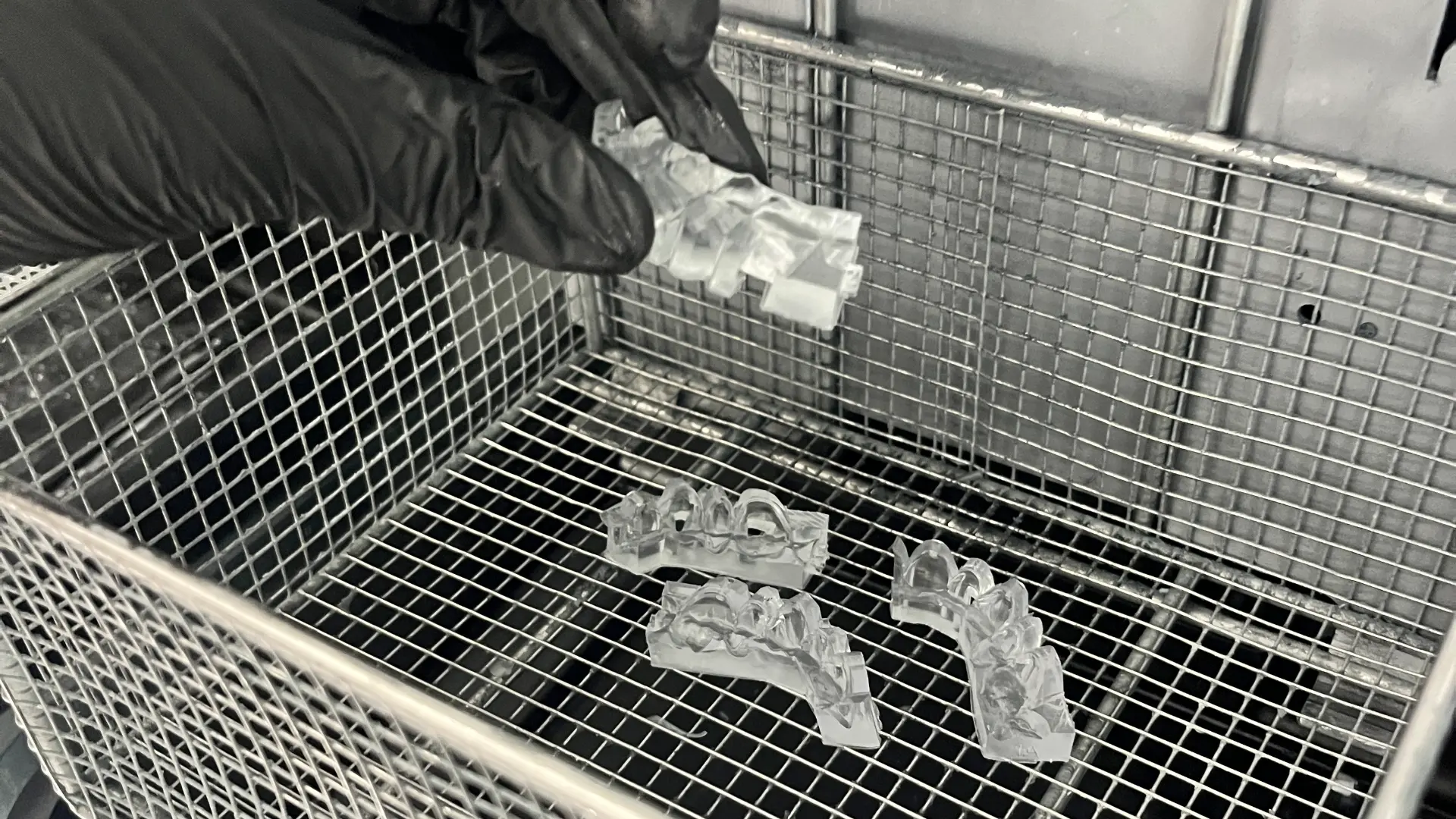
Place printed parts in a Form Wash or Form Wash L filled with isopropyl alcohol (IPA) and wash them for the time established in the Manufacturing Guide.
Make sure the parts are fully submerged in IPA when washing.
Exceeding wash duration may affect the dimensional accuracy and performance of printed parts over time.
4.3 Drying
Remove parts from IPA and leave to air dry at room temperature for at least 30 minutes in a well-ventilated area.
Compressed air can be used to help dry parts, allowing for rapid inspection of unwashed resin. Even when using compressed air, sufficient bench drying time must be allowed.
NOTE:
Drying times can vary depending on the design of parts and ambient conditions. Do not exceed the recommended washing time.
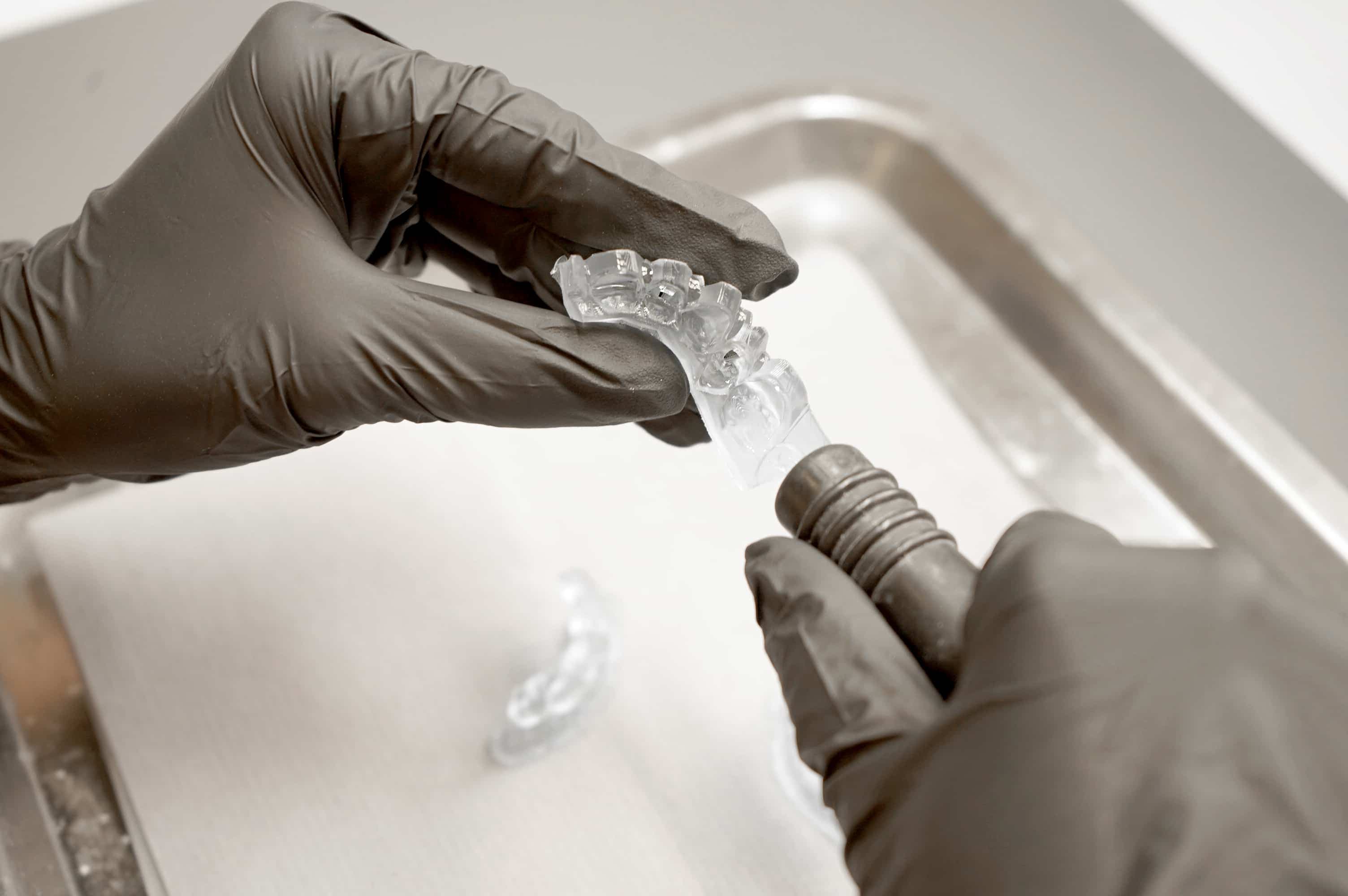
Inspect printed parts to ensure that parts are clean and dry. Before processing to subsequent steps, ensure no residual IPA, excess liquid resin, or residue particles remain on the surface.
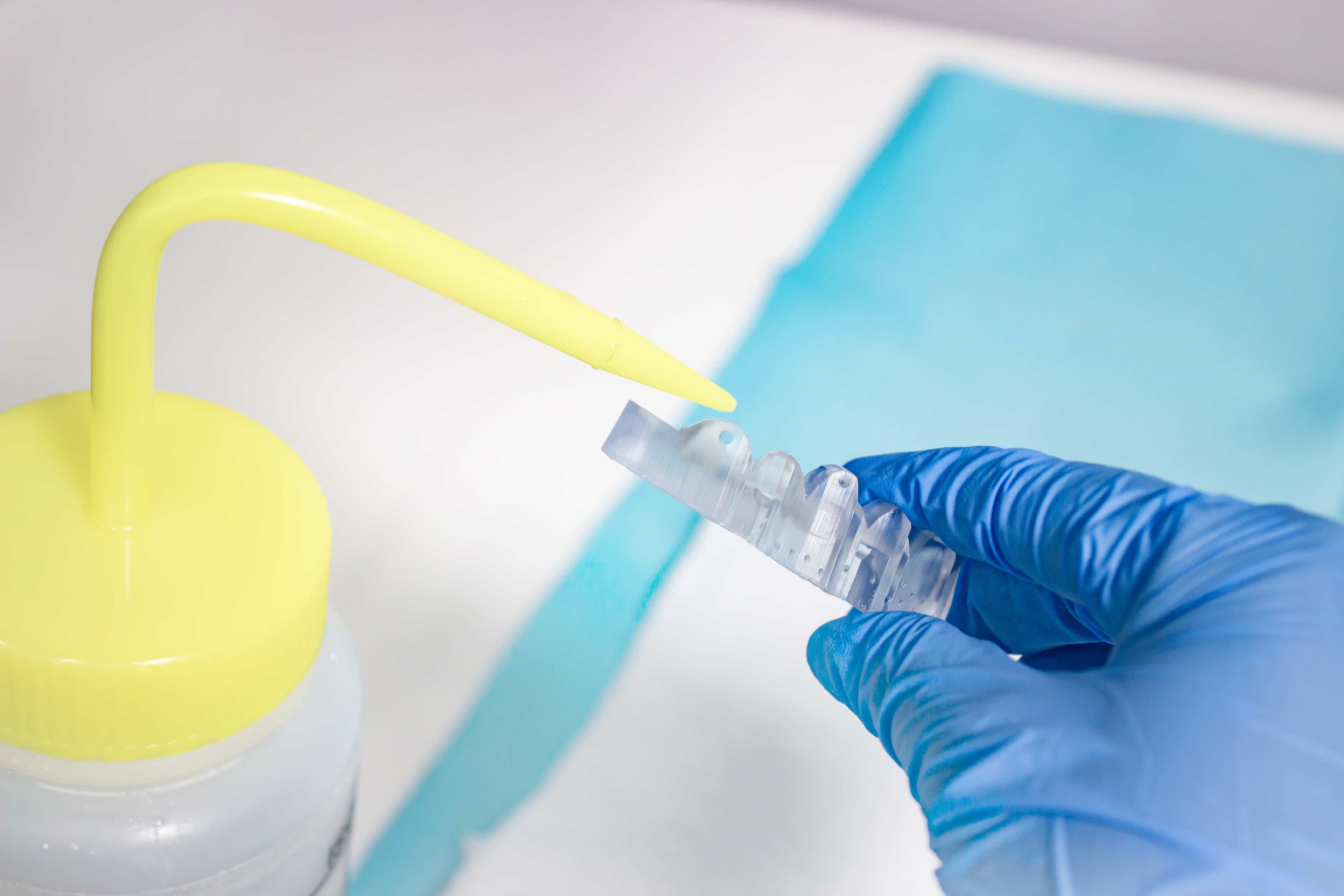
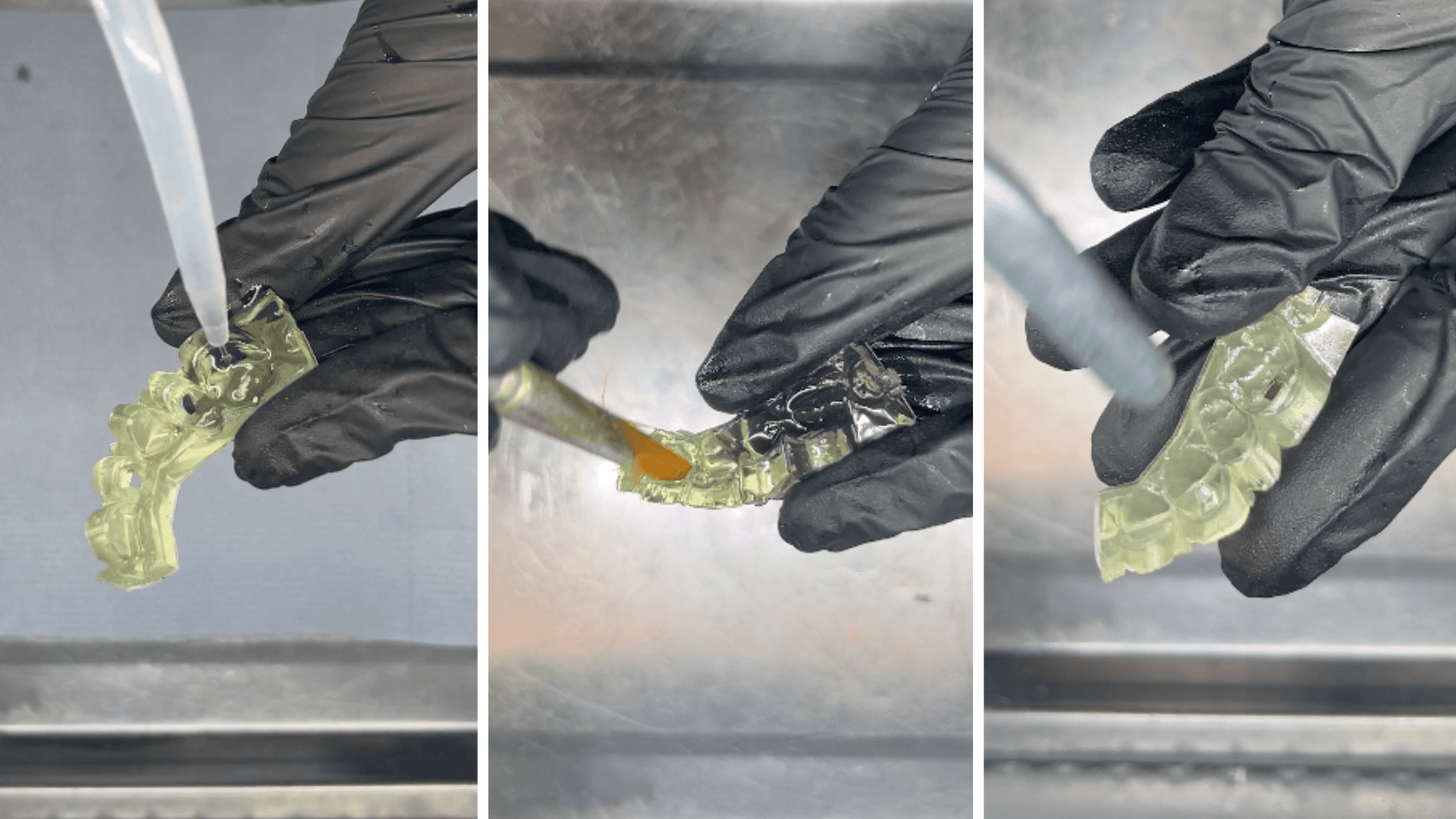
If any wet, uncured resin is still present after drying, use a squeeze bottle with fresh IPA to remove the uncured resin, then air dry the parts again. A dedicated soft brush may be used together with fresh IPA to gently remove resin from intricate areas. The use of compressed air for drying allows for rapid inspection.
4.4 Post-Curing
To maintain dimensional accuracy and biocompatibility, specific post-curing instructions must be followed.
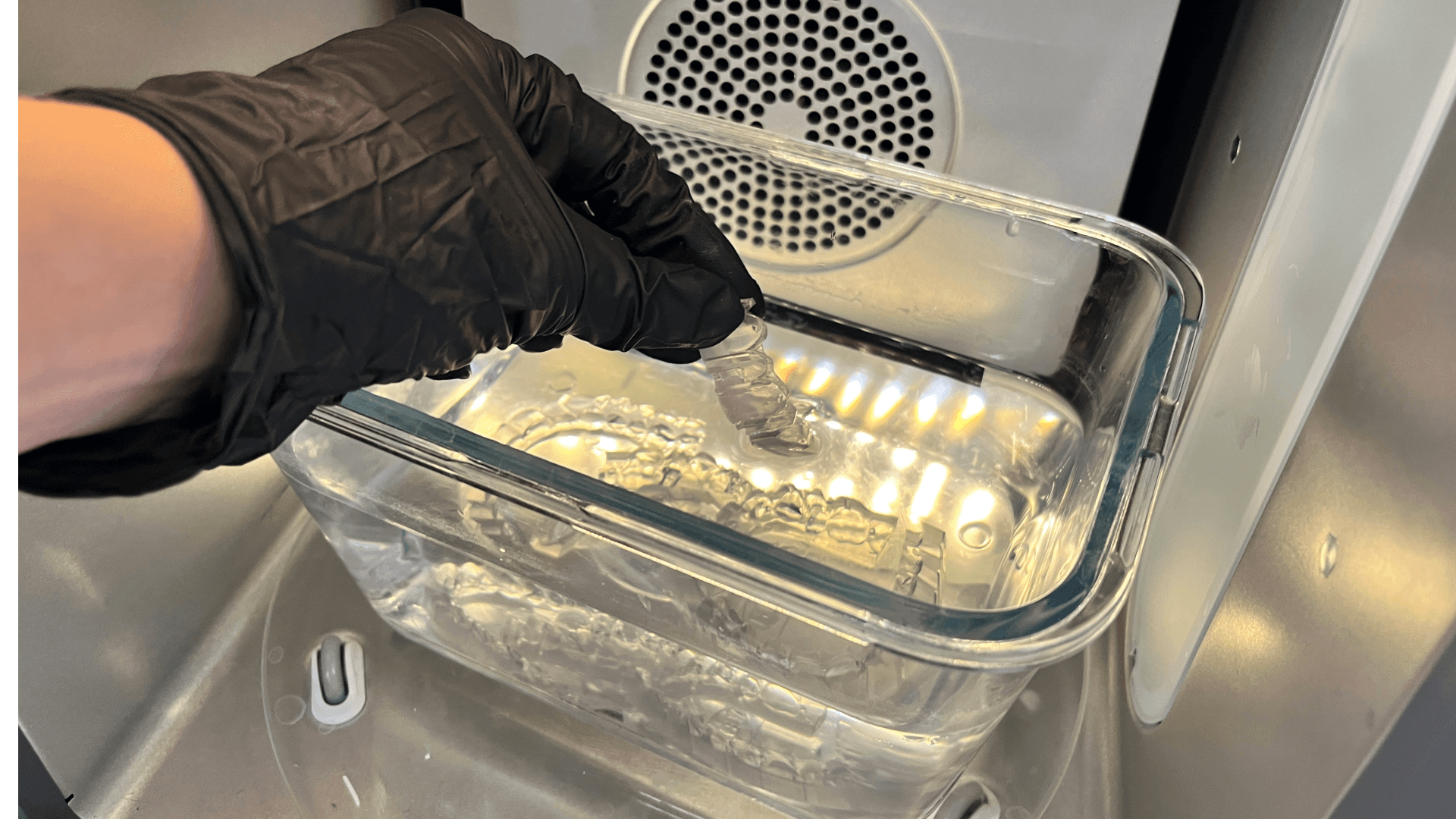
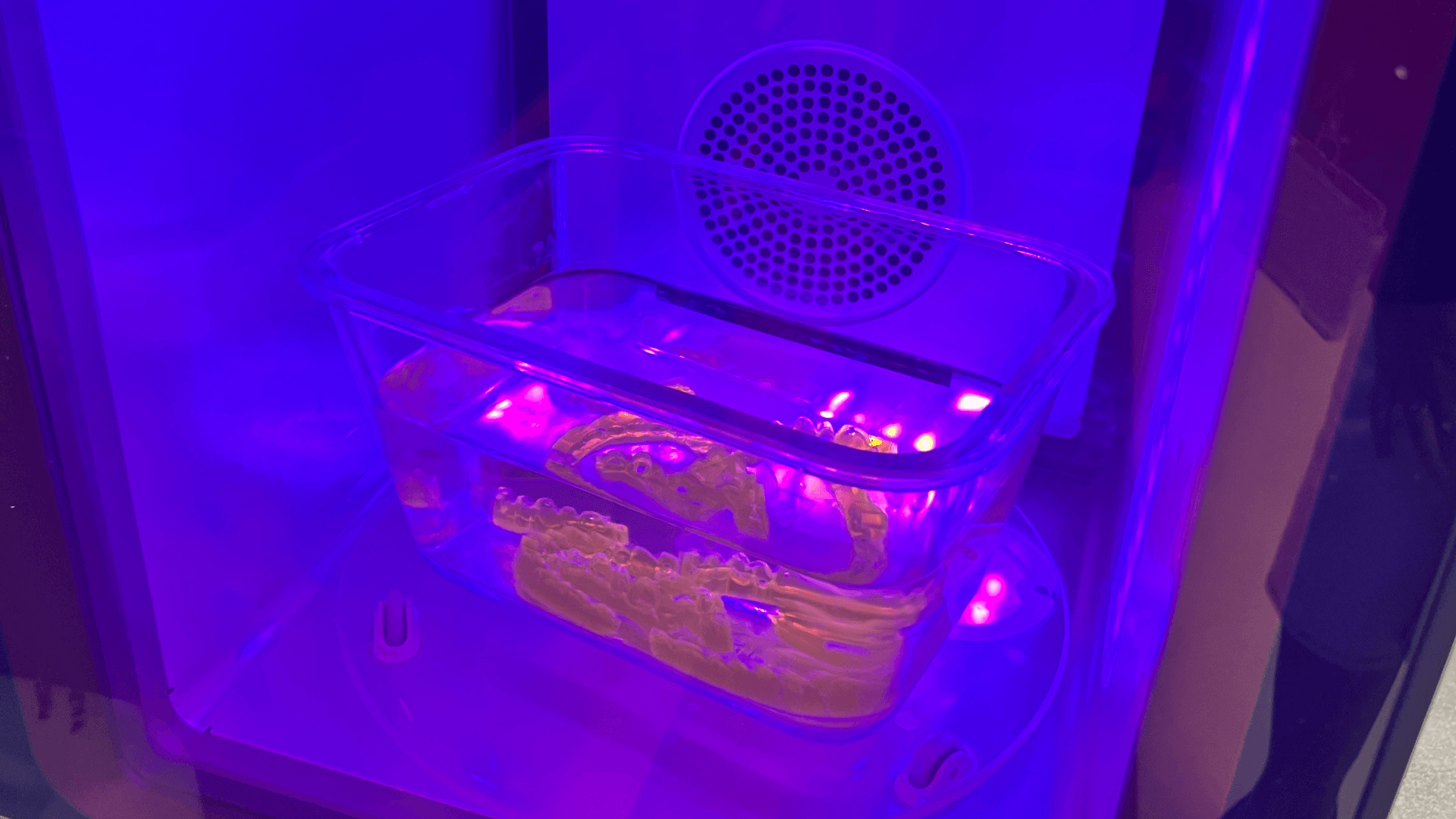
Printed parts should be cured while submerged in a transparent, water-filled container inside a Formlabs-validated curing unit. Refer to the list of compatible hardware, and the printer compatibility list.
If direct composite restoration guides are printed with rafts and supports, cure with the raft side down. If the guides are printed directly on the build platform without supporting structures, cure with the intaglio surface of the appliance facing up. Post-cure the parts using settings established in the Manufacturing Guide.
Allow the curing unit to cool down to room temperature between cycles.
4.5 Support Removal
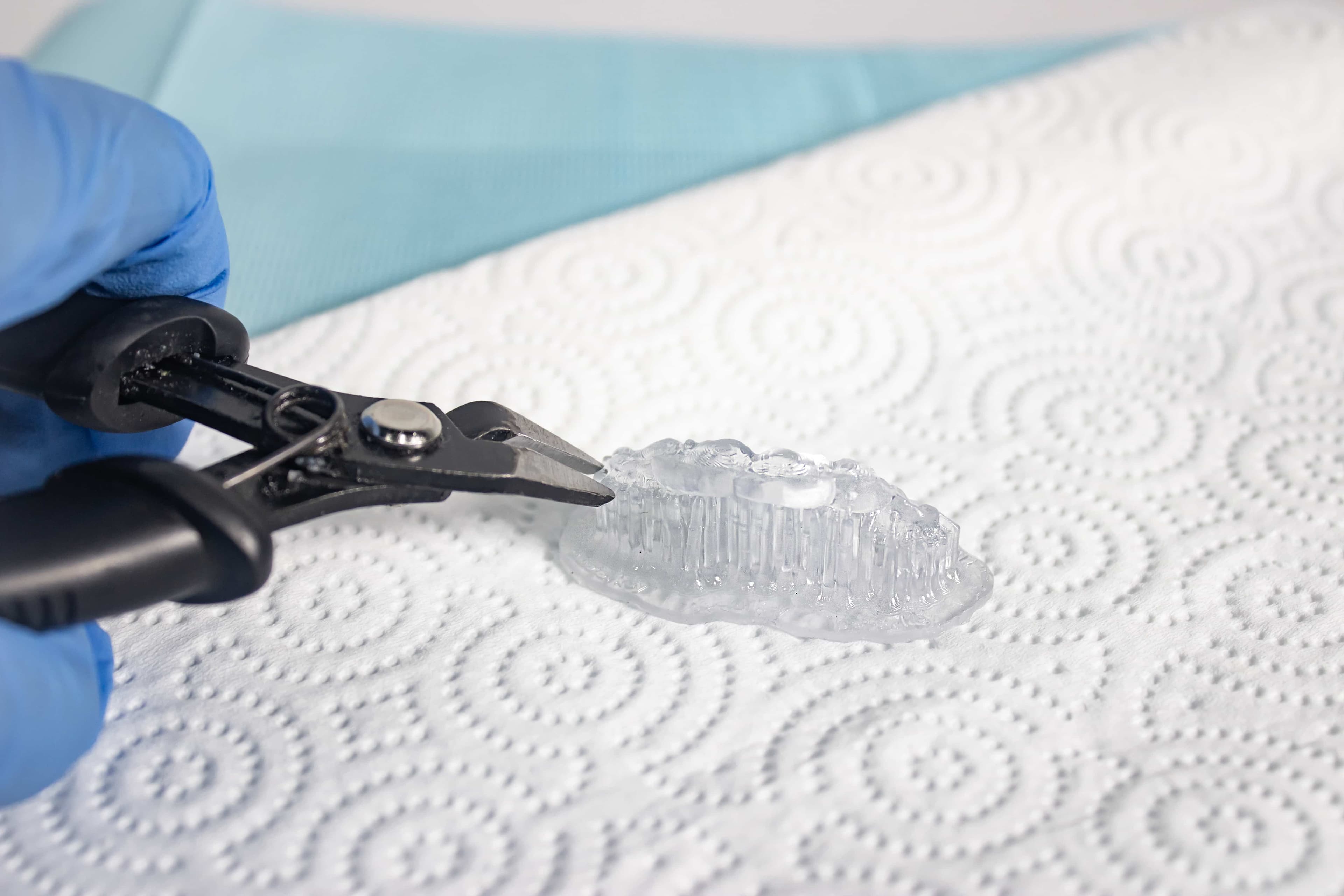
If supports were used, remove the supports using a cutting disk and handpiece, cutting plier, or other appropriate finishing tools.
Note:
While ripping the supports from the part might be quicker, it can leave divots in the part or damage the guide. We recommend cutting the supports off individually.
4.6 Finishing
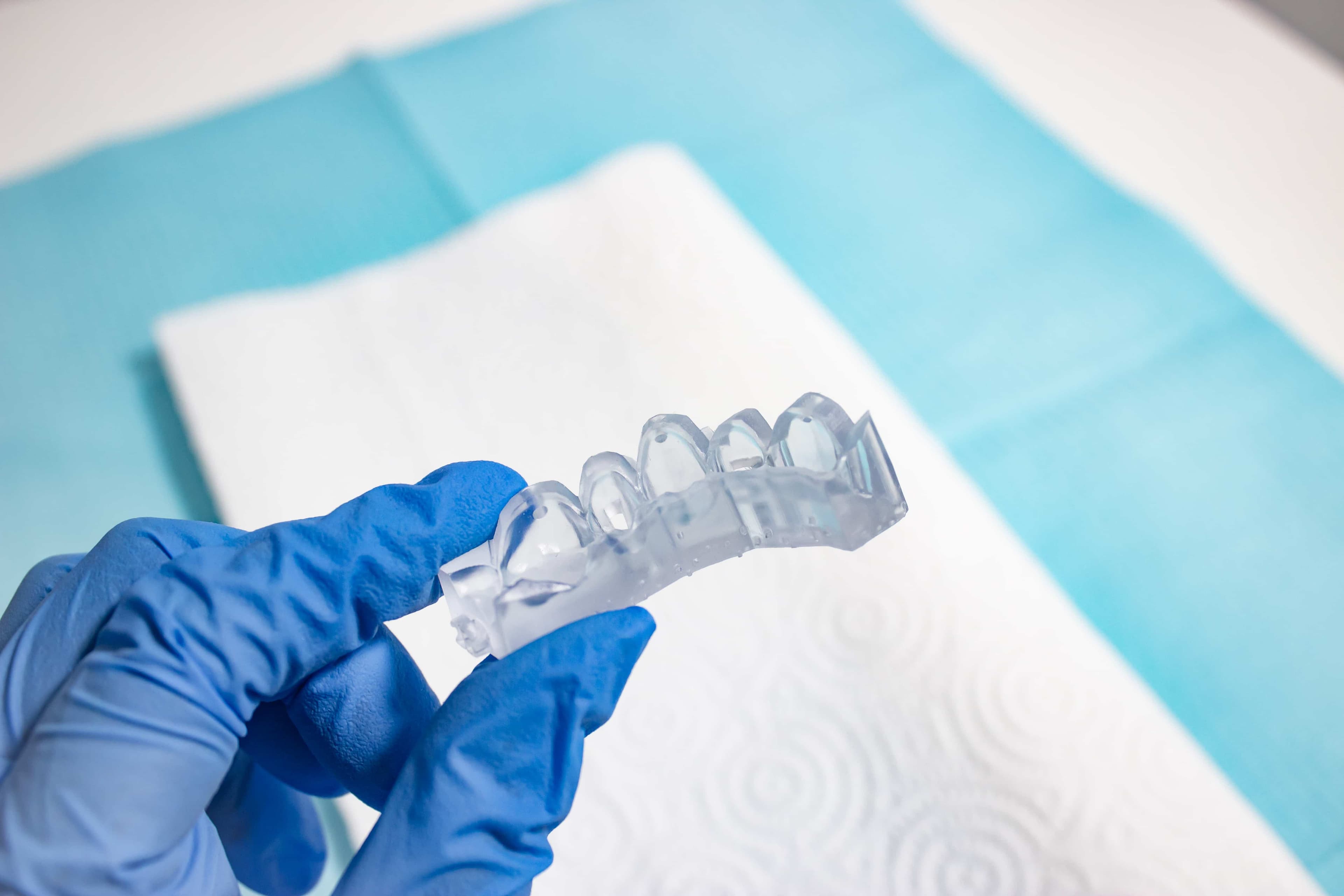
After support removal, if any support structures are left on the surface of the 3D printed direct composite restoration guide, you can remove them with a set of sharp Iris scissors.
Inspect the appliance. Discard and reprint it if any damage or cracks are detected.
5. Appliance Use & Care
UV Cure Light Recommendation
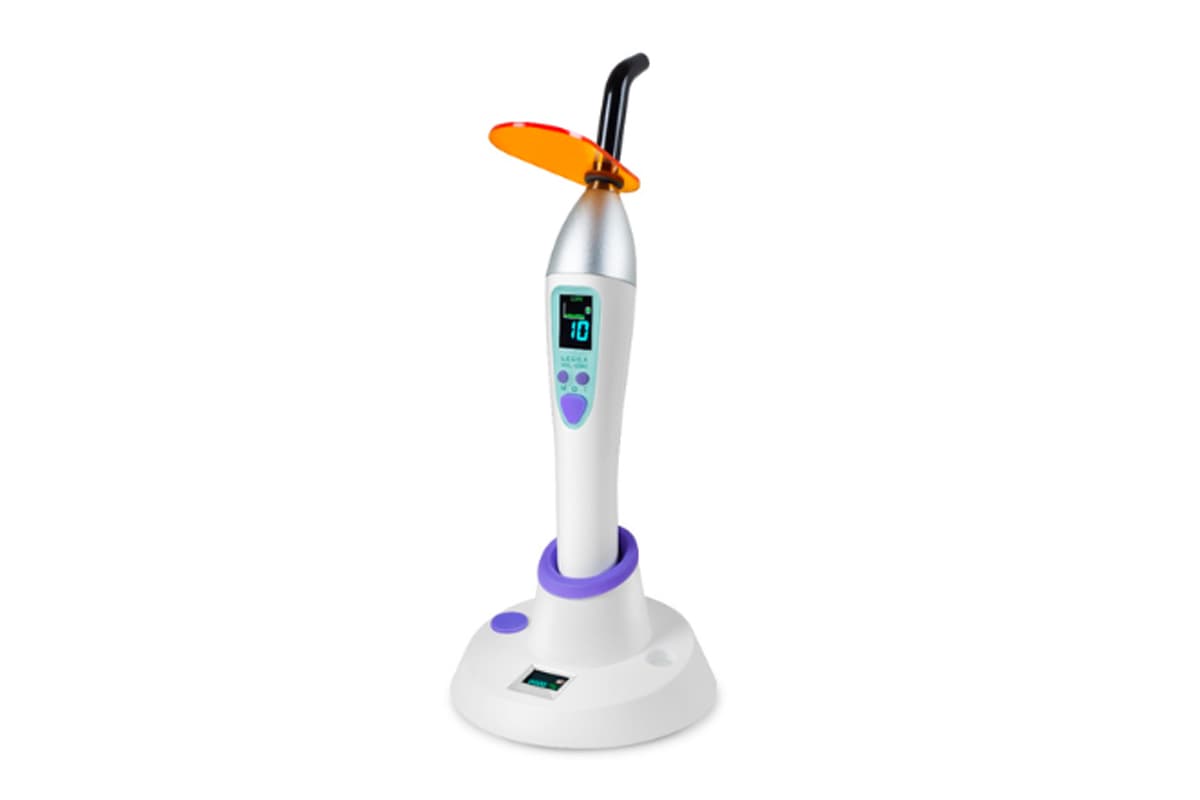
Working with dental professionals, we’ve found that having the right UV curing light greatly improves the adhesion of the composite through the direct composite restoration guide. One fairly affordable, high-powered light we recommend is the Ledex WL-090+ Curing Light.
5.1 Cleaning
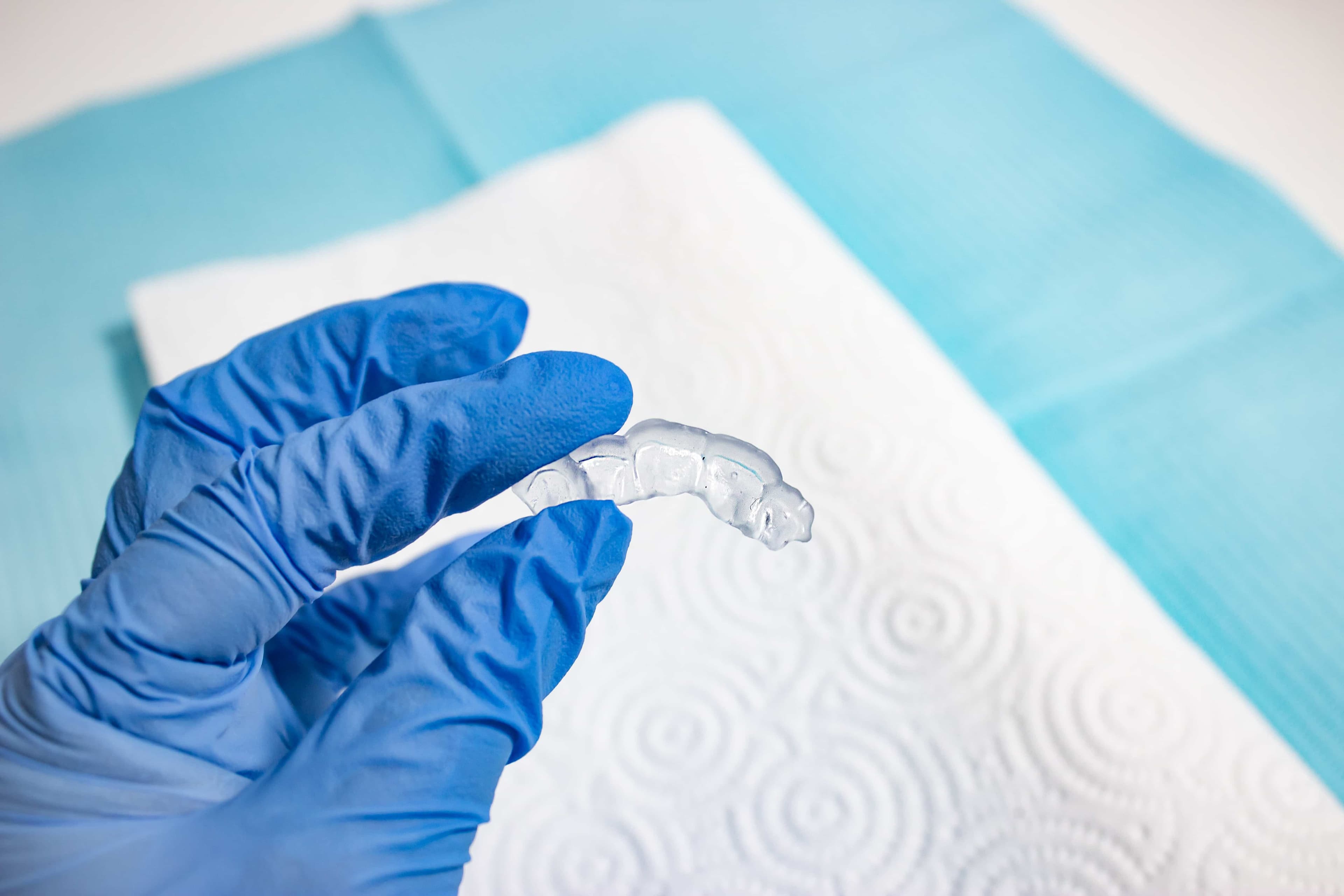
Fully post-processed parts can be cleaned using neutral soap and room temperature water.
After cleaning, always inspect parts for cracks. Discard if any damage or cracks are detected.
5.2 Disinfection
Appliances may be cleaned using neutral soap and water. The direct composite restoration guide may be cleaned and disinfected according to facility protocols.
Our tested method of disinfection involves soaking finished direct composite restoration guides in fresh 70% IPA for five minutes.
After disinfection, inspect the part for cracks to ensure the integrity of the direct composite restoration guide.
5.3 Storage
When not in use, place printed parts in closed, opaque or amber containers.
Store in a cool, dry place out of direct sunlight. Excess light exposure over time may affect the color and performance of printed parts.
Store the resin cartridges at 10–25 °C (50–77 °F). Do not exceed 25 °C (77 °F) when in storage. Keep away from ignition sources.
5.4 Clinical Use
For the full clinical procedure, visit DSD’s site to access their step-by-step clinical workflow.
Users can apply a separating agent on the intaglio surface of the direct composite restoration guide to reduce the adhesion of the guide to composite materials.
Follow the manufacturing instructions of the separating agents.
The application of a separating agent to the printed parts is not always needed. We recommend testing your composite first on a trial guide to determine the need for an additional separating agent.
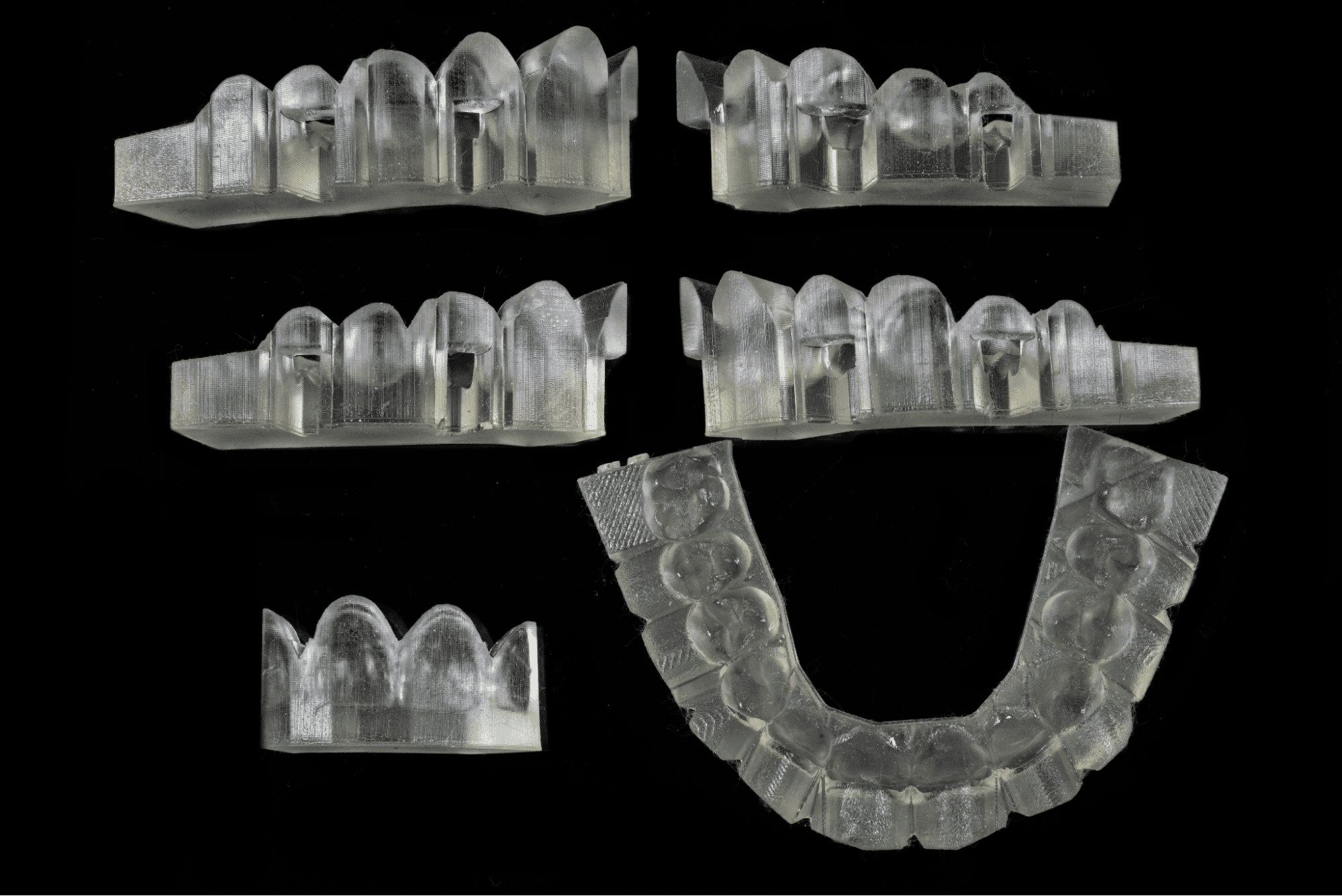
Printed Guides (Photo: DSD Planning Center)
5.5 Disposal
1. Any cured resin is non-hazardous and may be disposed of as regular waste.
-
Follow facility protocols for waste that may be considered biohazardous.
2. Liquid resin should be disposed of in accordance with government regulations (community, regional, and national).
-
Contact a licensed professional waste disposal service to dispose of liquid resin.
-
Do not allow waste to enter storm or sewer drainage systems.
-
Avoid release into the environment.
-
Dispose of contaminated packaging as an unused product.
6. Formlabs Printer Compatibility for IBT Flex Resin
Additional Resources
Explore Formlabs dental resources for in-depth guides. step-by-step tutorials, white papers, webinars, and more.
Dentistry Made Easier
Form 4B is a blazing fast dental 3D printer that offers the most diverse materials library for dentistry and orthodontics. Create high-quality dental models and biocompatible appliances fast, with easy workflows, leading reliability, and stunning part quality using the Form 4B ecosystem.