ATTENTION:
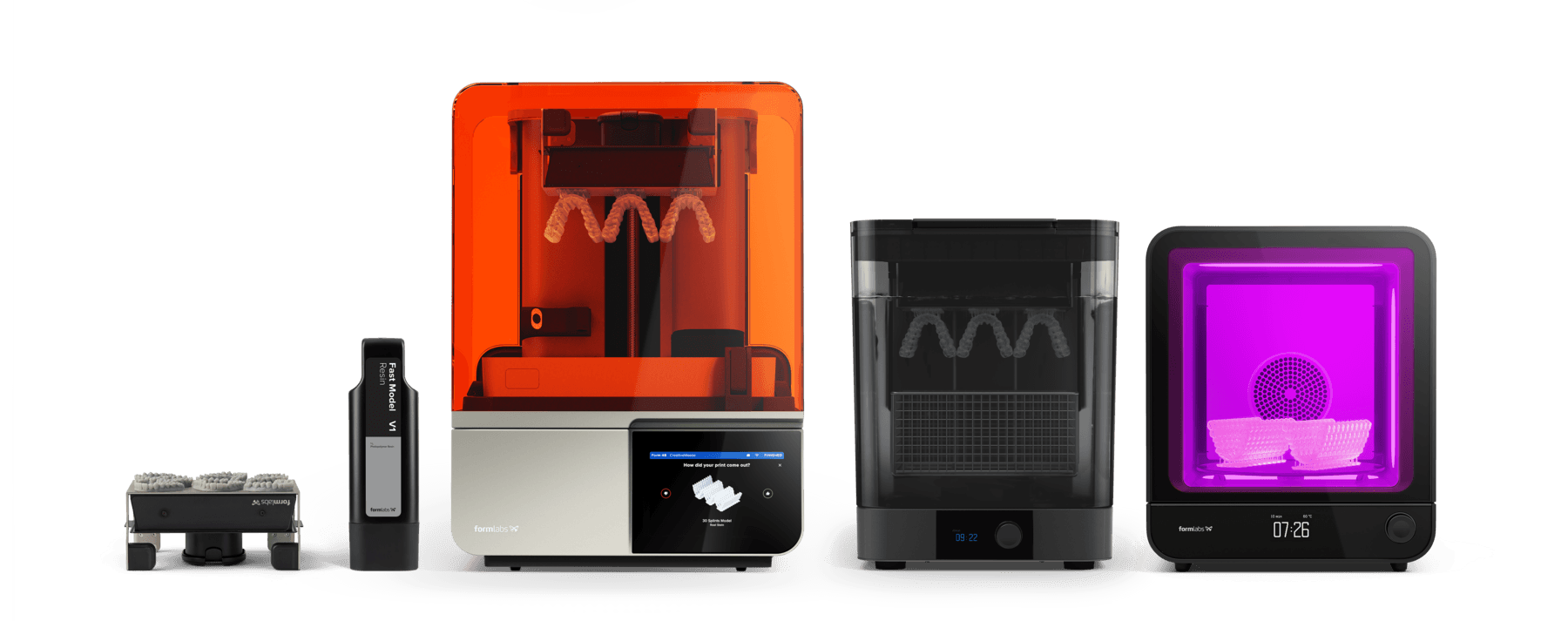
For full compliance and biocompatibility, Surgical Guide Resin requires a dedicated Build Platform and Finish Kit or Form Wash, which should not be used with other Formlabs resins.
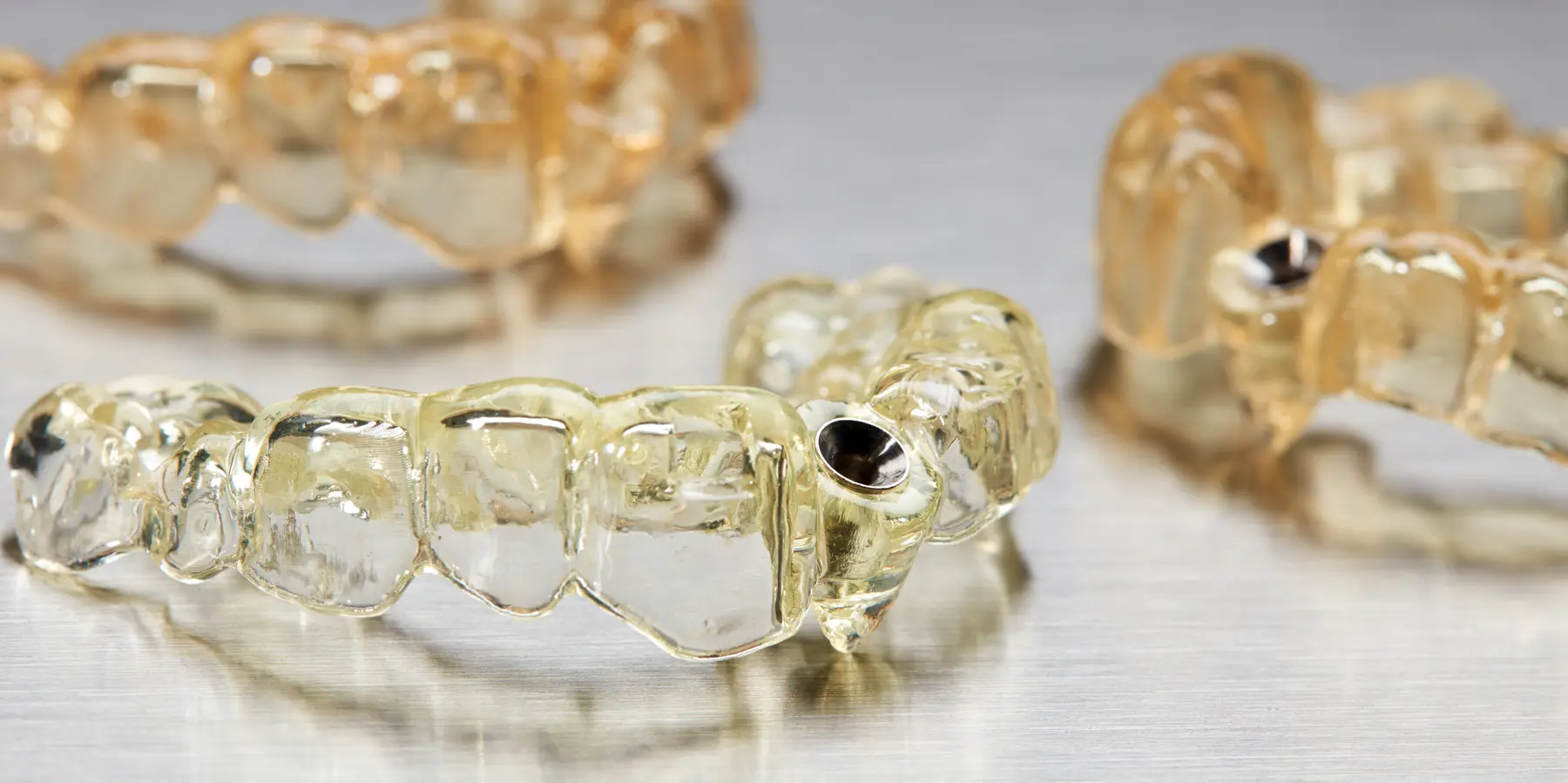

Formlabs Surgical Guide Resin is a biocompatible material formulated for manufacturing surgical guides, pilot drill guides, and drilling templates. This application guide demonstrates each step for making 3D printed surgical guides on Formlabs SLA 3D printers. Use the following workflow to ensure precise results.
Formlabs Surgical Guide Resin is a biocompatible material formulated for manufacturing surgical guides, pilot drill guides, and drilling templates. This application guide demonstrates each step for making 3D printed surgical guides on Formlabs SLA 3D printers. Use the following workflow to ensure precise results.
Essentials
Made by Formlabs:
Formlabs SLA 3D printer with a compatible Resin Tank and Build Platform
PreForm Dental Software (free)
Made by Third Parties:
Surgical guide treatment planning and design software (CAD)
Surgical guide sleeves
Intraoral or desktop 3D scanner
CBCT scanner
1. Scan
In order to plan the treatment and design a surgical guide, collect anatomical data of the patient’s dentition by either scanning the patient directly with an intraoral scanner, or using a desktop optical scanner to scan an impression or the plaster model.
To make a fully guided surgical guide, capture the anatomy of the patient's hard tissue structures with a cone-beam computed tomography (CBCT) scanner.

2. Design
To begin, design the surgical guide in dental CAD software, such as 3Shape Implant Studio, exocad exoplan, or similar. Make sure to select software that offers STL or OBJ file export to ensure compatibility with PreForm.
For optimal results, follow these guidelines when designing surgical guides for printing on Form 4B or Form 4BL 3D printers. Always respect the minimum thickness for safe application. You can modify the recommended offset values based on the desired retention and the specific type of drill sleeves being used. Refer to the information below for the effective range of offsets.
|
DESIGN SETTING |
MINIMUM VALUE |
MAXIMUM VALUE |
|
|
Wall thickness |
Ensures structural stability; should be large enough for sufficient strength and durability. |
2.0 mm |
n/a |
|
Offset from teeth |
Impacts how tightly the guide fits on the patient’s teeth. Higher values will fit more loosely, lower values will fit more tightly. |
0.00 mm |
0.07 mm |
|
Offset from sleeve |
Ensures a tight press fit when inserting the metal guide sleeve. |
0.00 mm |
0.040 mm |
Treatment planning and surgical guide design generally follow a similar high-level flow, though the precise step-by-step process can differ depending on the software package used. For detailed advice on designing surgical guides, contact your software manufacturer.
A few best practices and considerations for 3D printing surgical guides follow.
2.1 Import Scans
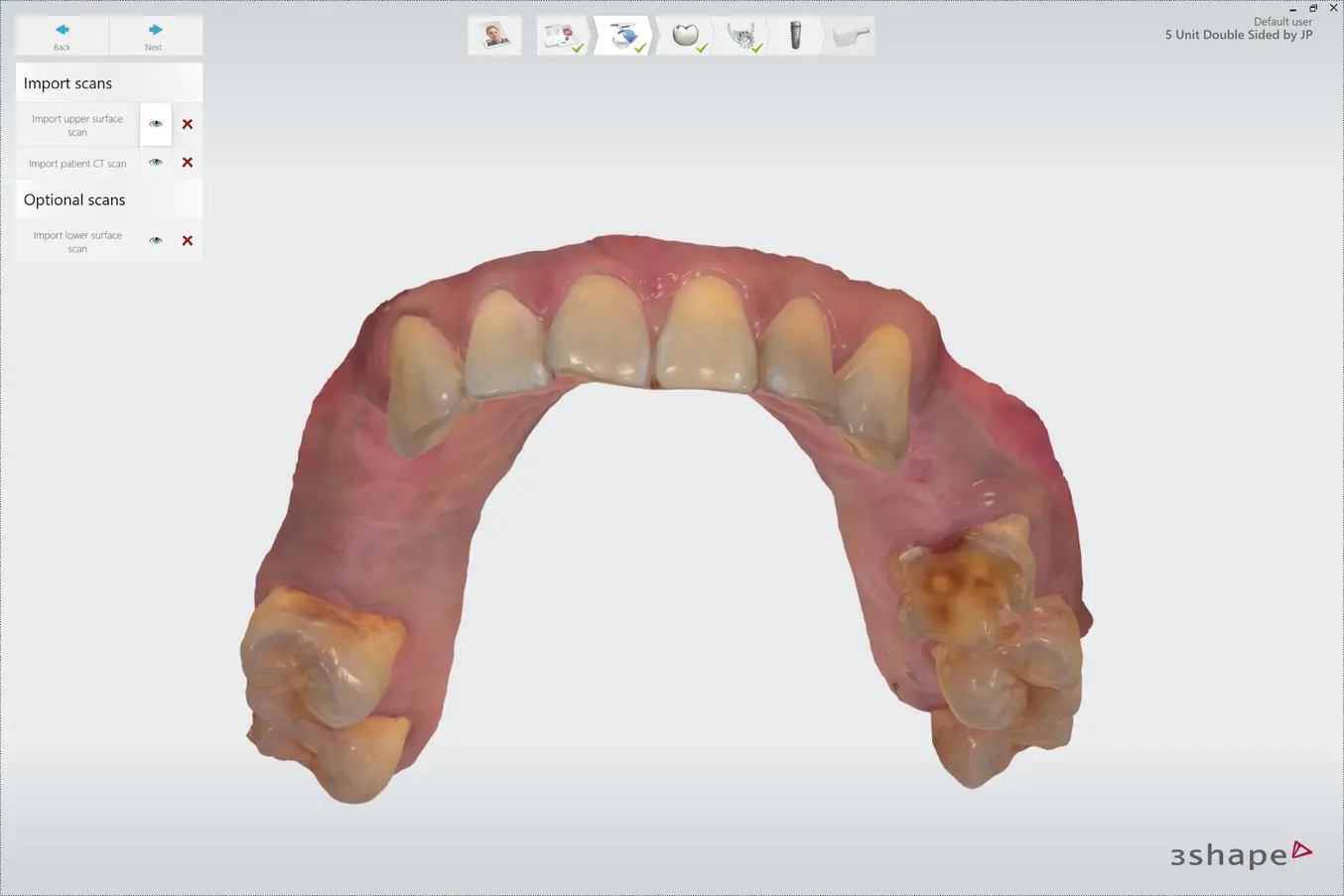
Import the intraoral or desktop 3D scans of the patient's dentition and the CBCT scan data of the patient's hard tissue structures into your dental CAD software.
When considering new solutions, verify software compatibility with common scanner output formats, such as STL for dentition scans and DICOM for CBCT data.
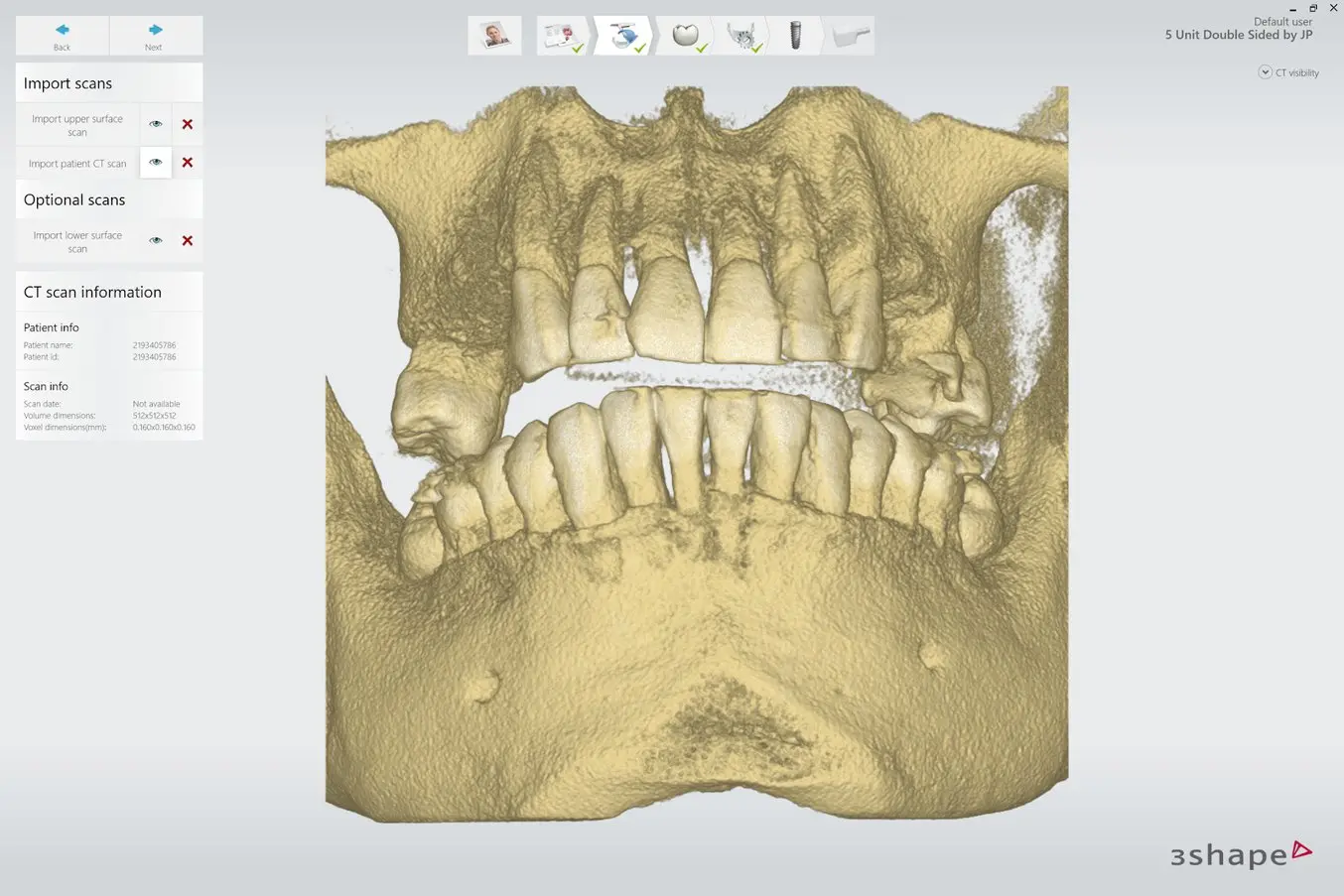
2.2 Review Scans
Review the CBCT scans and identify the mandibular nerve if applicable.
2.3 Align Scans
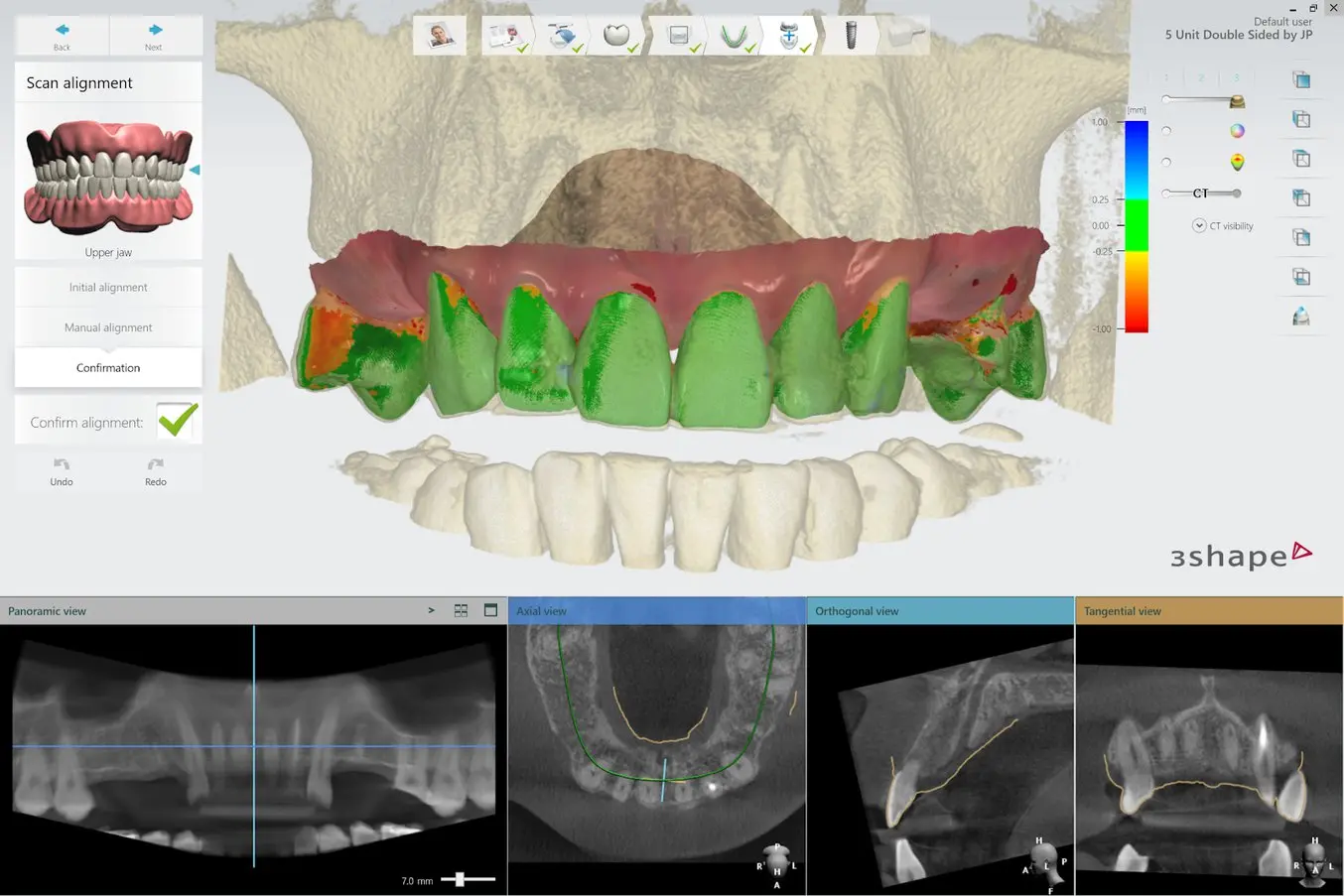
Align the intraoral scan and the CBCT scan using both manual point-of-interest identification tools and automatic tools for detailed alignment. This allows both the detailed surface scan data and the CBCT bone data to be used in treatment designs.
2.4 Design Treatment
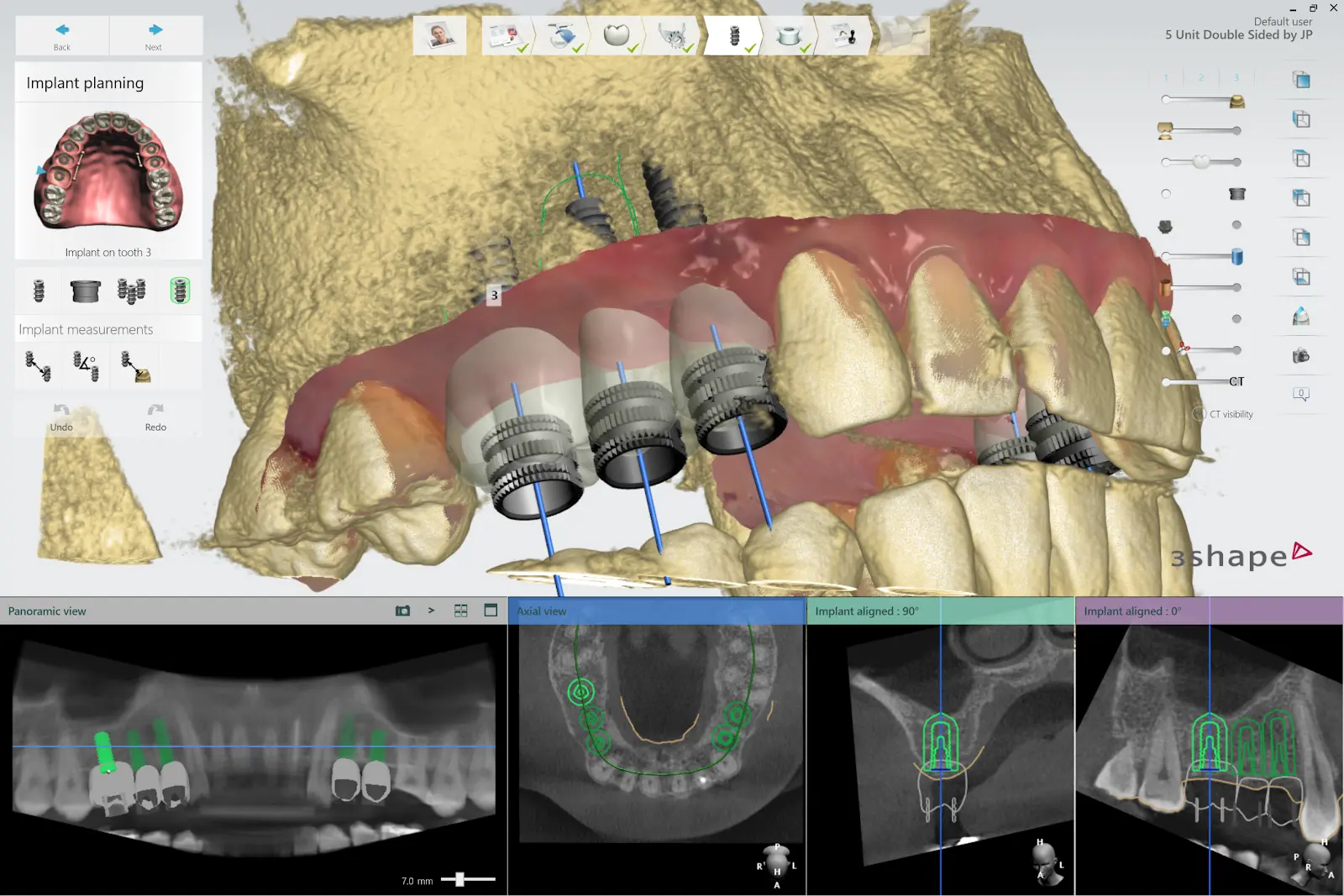
Select your desired implant and place it on the patient’s anatomy. Choose the position, angulation, depth, desired clinical outcomes, and restoration design. Most dental CAD software packages offer a range of implant libraries, allowing you to design virtually with the implant system being used for the specific case.
2.5 Design Surgical Guide
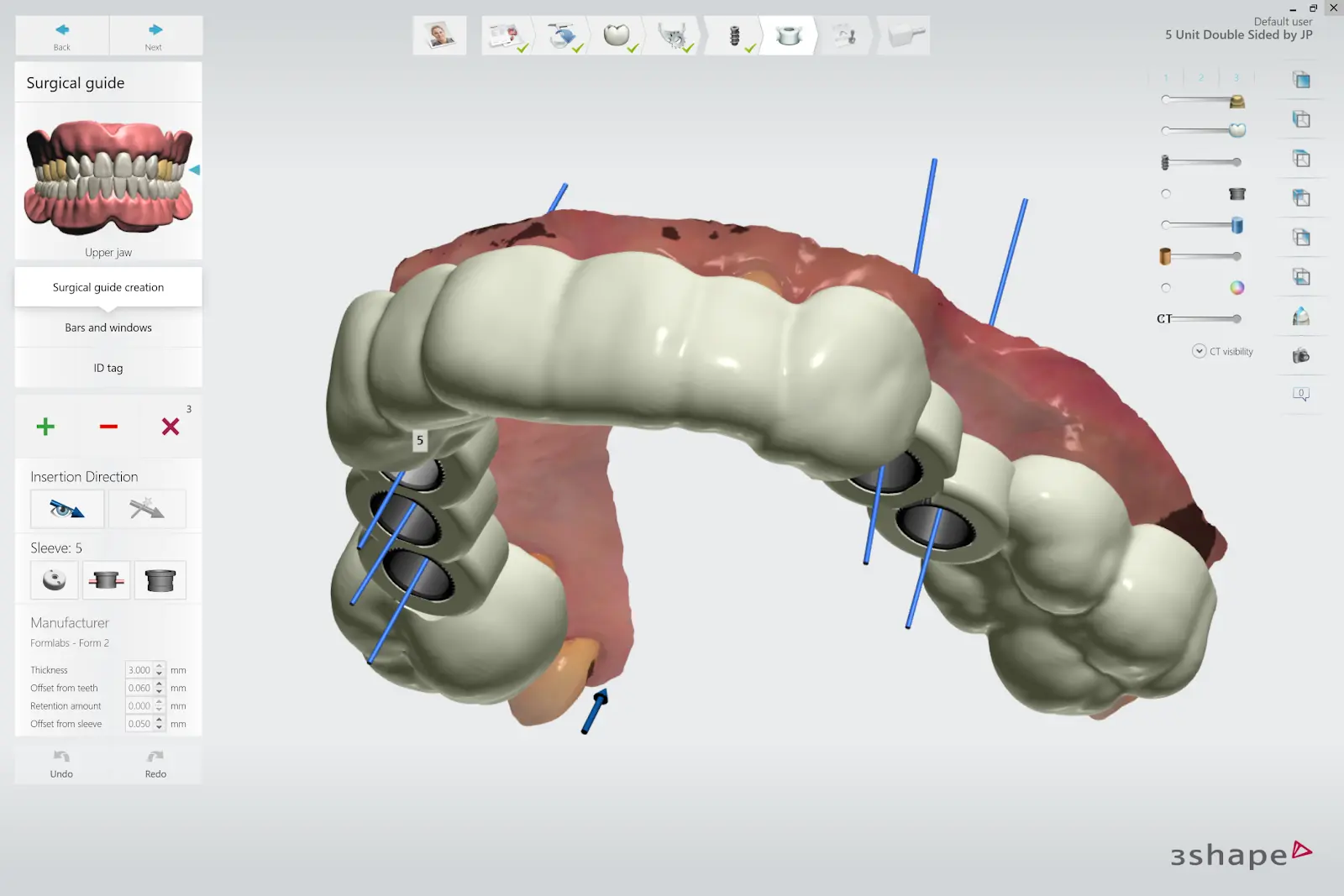
Design the surgical guide by drawing the desired area of the arch to cover. For the best retention and accuracy, use full arch guides. The dental CAD software should generate a model integrating the implant system with the guide design.
2.6 Export
Once the design is created, export a digital model of the part as an STL or OBJ file.
3. Print
3.1 Select Material
Note:
If you are new to PreForm Dental software, please refer to this playlist on our YouTube channel.
Open PreForm and select Surgical Guide from the Material menu.
3.2 Import Model Files Into Preform
Import the STL or OBJ file into PreForm.
Note:
If you are using 3Shape Implant Studio, steps 3.2-3.4 can be automated if you install our partner integration component. The software will automatically orient parts and generate supports. Your ready-to-print file will open directly in PreForm. After it loads, just click Print.
3.3 Orient Surgical Guides
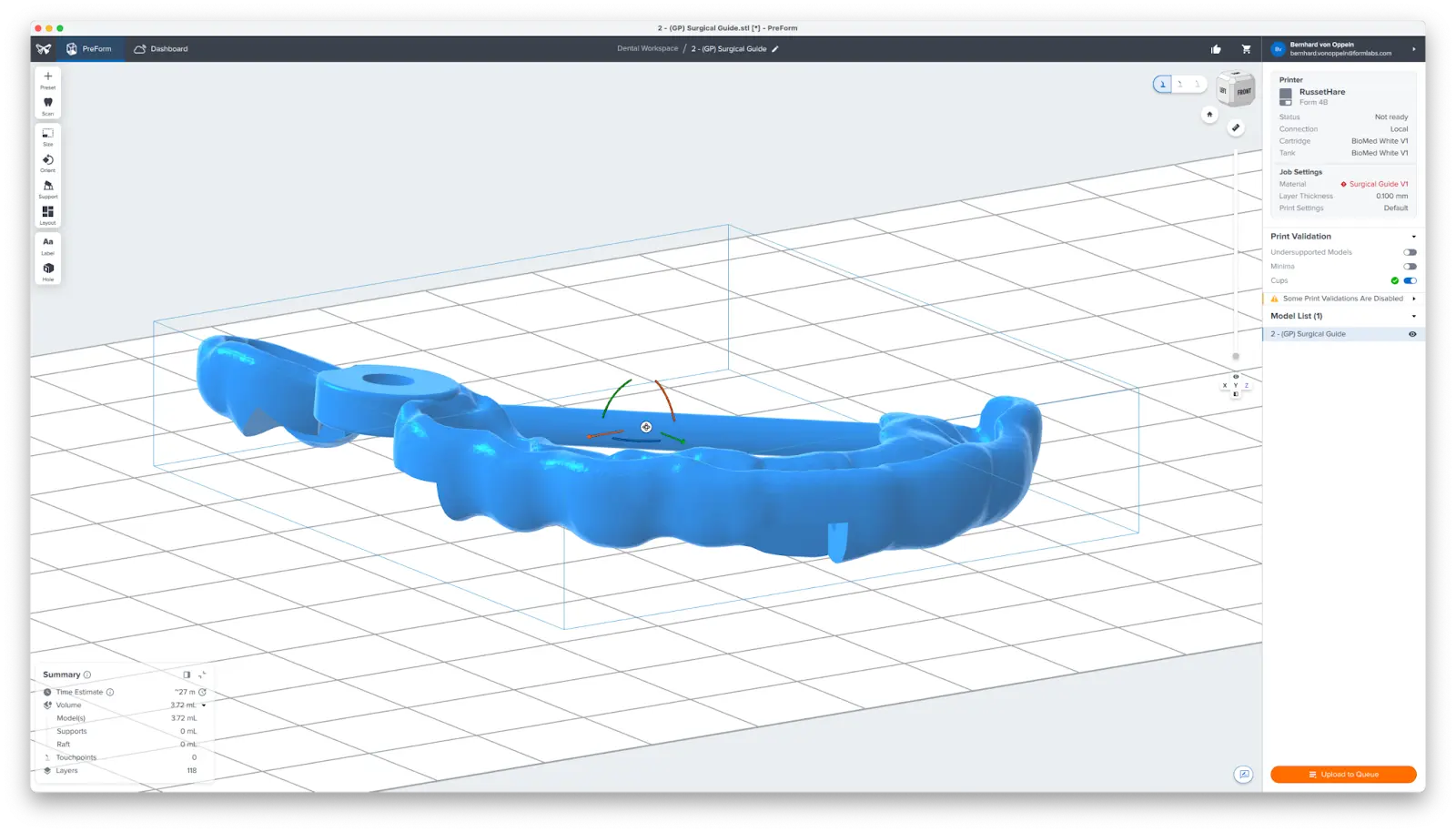
Orient parts horizontally with the intaglio surface facing away from the build platform to ensure that supports will not be generated on these surfaces. If printing more than one surgical guide in a single print, manipulate the placement of each model on the build platform to optimize the print volume.
3.4 Generate Supports
Generate supports using the Auto-Generate Selected button.
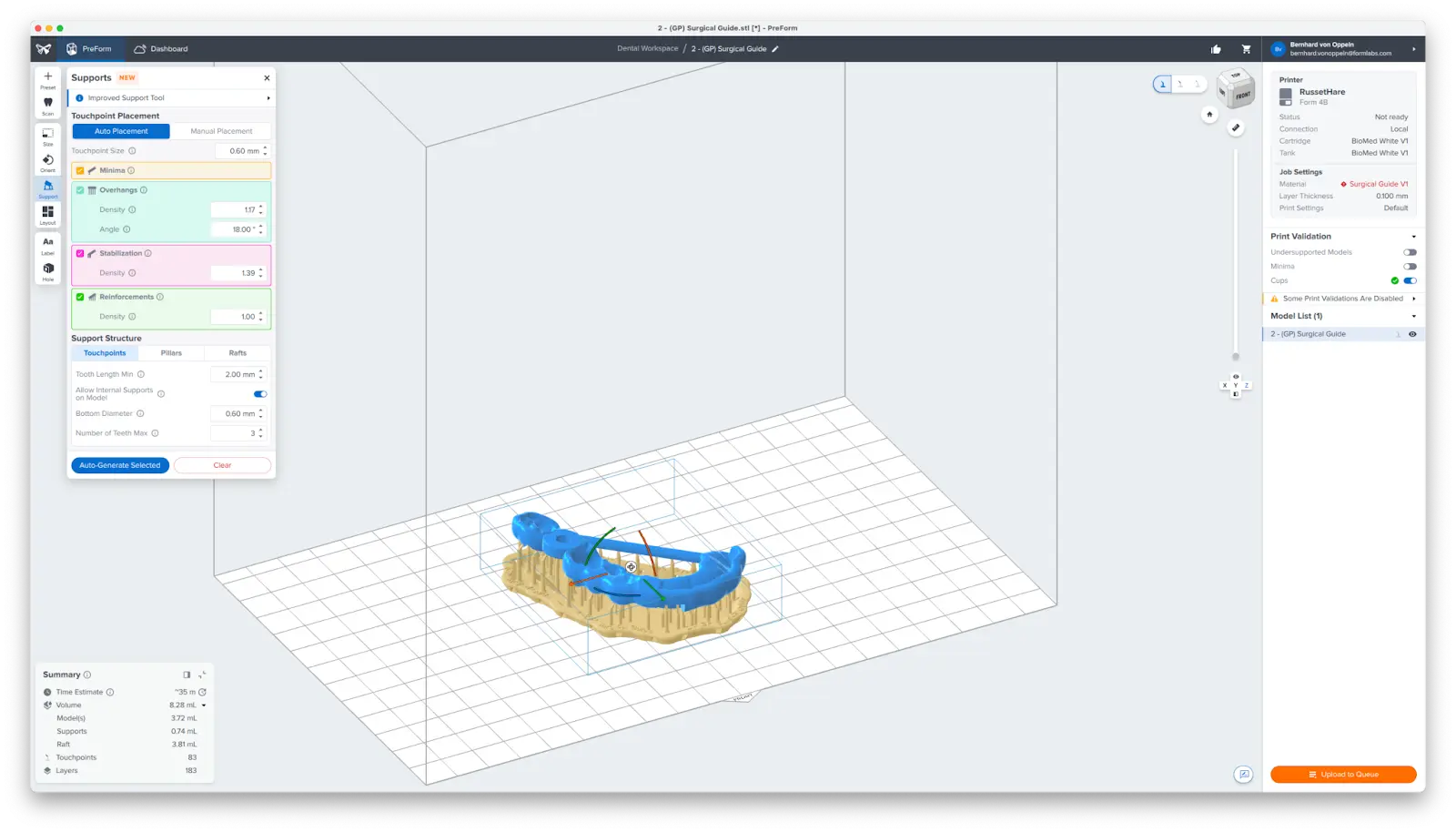
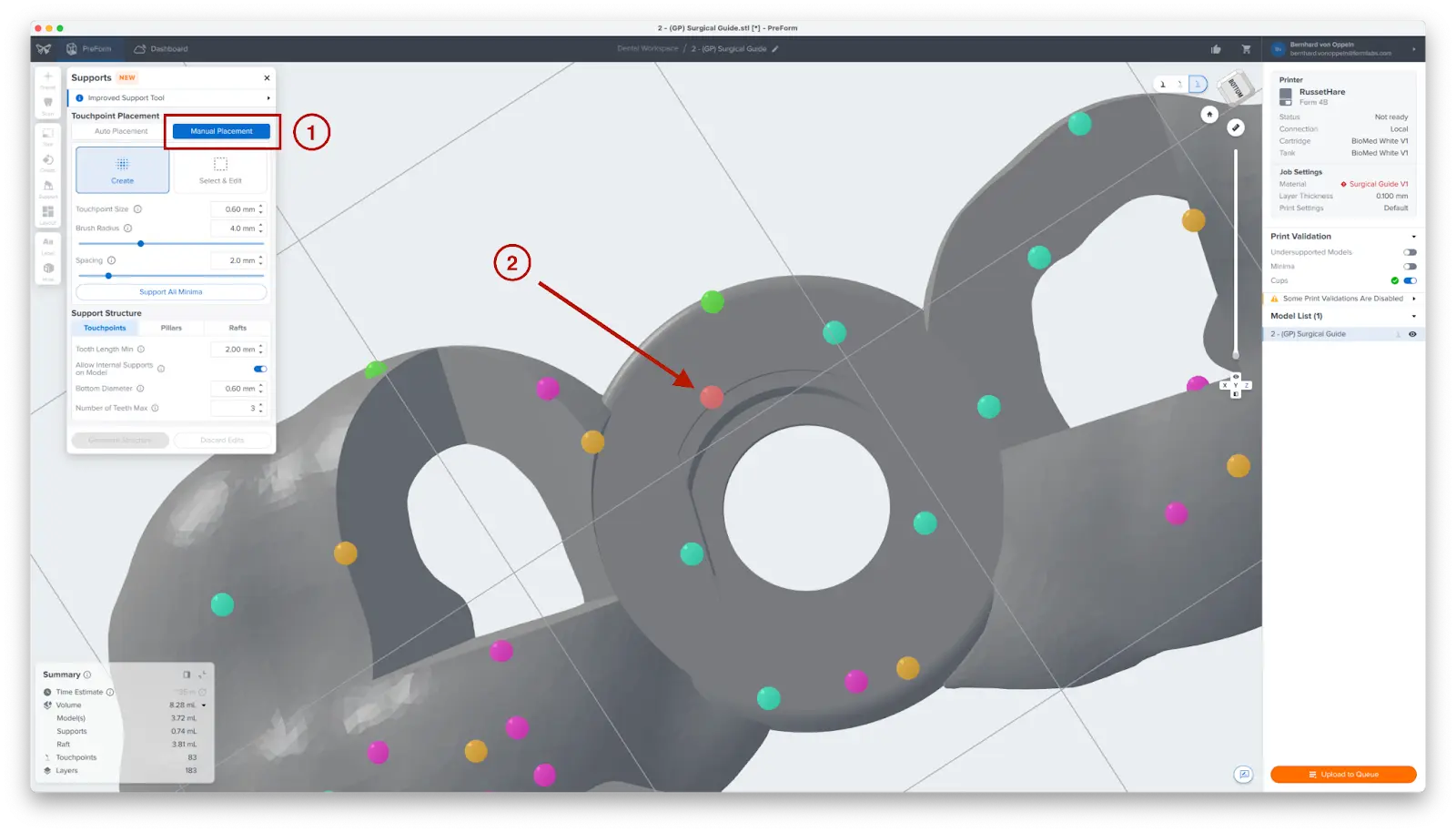
To allow for simple and precise assembly, ensure that there are no supports near the guide sleeve holes or on the intaglio surfaces. Use the Manual Placement editing feature (1) to closely inspect support locations and add or remove (2) supports as needed.
3.5 Transfer the Job to the Printer
Click on the button that says Send to Printer, or Upload to Queue, depending on your printer status.
3.6 Prepare the Printer
Insert the appropriate resin tank, Surgical Guide Resin cartridge, and a build platform into the printer.
ATTENTION:
For full compliance and biocompatibility, Surgical Guide Resin requires a dedicated Build Platform and Finish Kit or Form Wash, which should not be used with other Formlabs resins.
3.7 Print
Begin printing by selecting the print job from the printer's print menu. Follow any prompts or dialogs shown on the printer screen. The printer will automatically complete printing.
4. Post-Process
Post-processing 3D printed surgical guides involves the following steps:
Part removal
Rinsing
Drying
Post-curing
Removing supports
Polishing (optional)
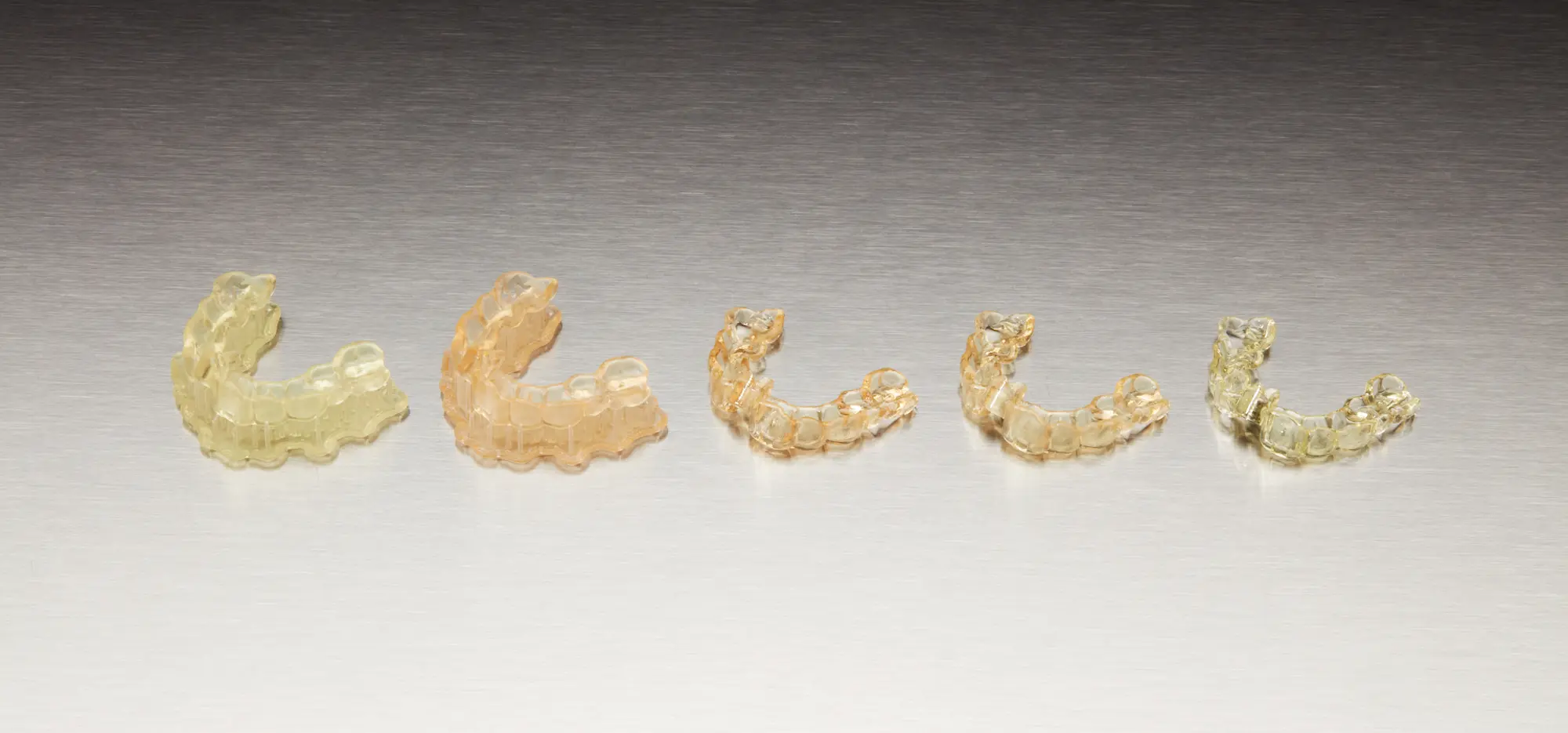
From left to right: a surgical guide printed and washed, cured, polished, sleeves inserted, and sterilized.
4.1 Part Removal
Printed parts can be removed from the build platform before or after cleaning. If using the Form 4 Flex Build Platform, you can easily pop off the parts with no extra tools. When using a standard Build Platform, use an appropriate tool like a spatula to detach the parts.
4.2 Wash Parts
With Form Wash
Place the surgical guides, free-standing or still attached to the build platform, in a Form Wash filled with 99% isopropyl alcohol (IPA). Set to wash for 5 minutes to clean the parts and remove liquid resin before post-curing.
With the Finish Kit
Remove parts from the build platform with the part removal tool as described in Section 4.1 Part Removal.
Rinse the parts in two buckets of 99% isopropyl alcohol (IPA), for five minutes or until clean to remove liquid resin before post-curing.
4.3 Drying Parts
Leave parts to air dry completely — at least 30 minutes. You can use compressed air to blow IPA away from surgical guide surfaces. Inspect parts closely to ensure all surgical guides are fully washed with no particles or uncured resin present on the surfaces before proceeding to subsequent steps. If needed, repeat wash with fresh 99% IPA.
If printed parts are still on the build platform, remove the parts using the removal tool as instructed in Section 4.1 Parts Removal.
4.4 Post-Cure Parts With Form Cure
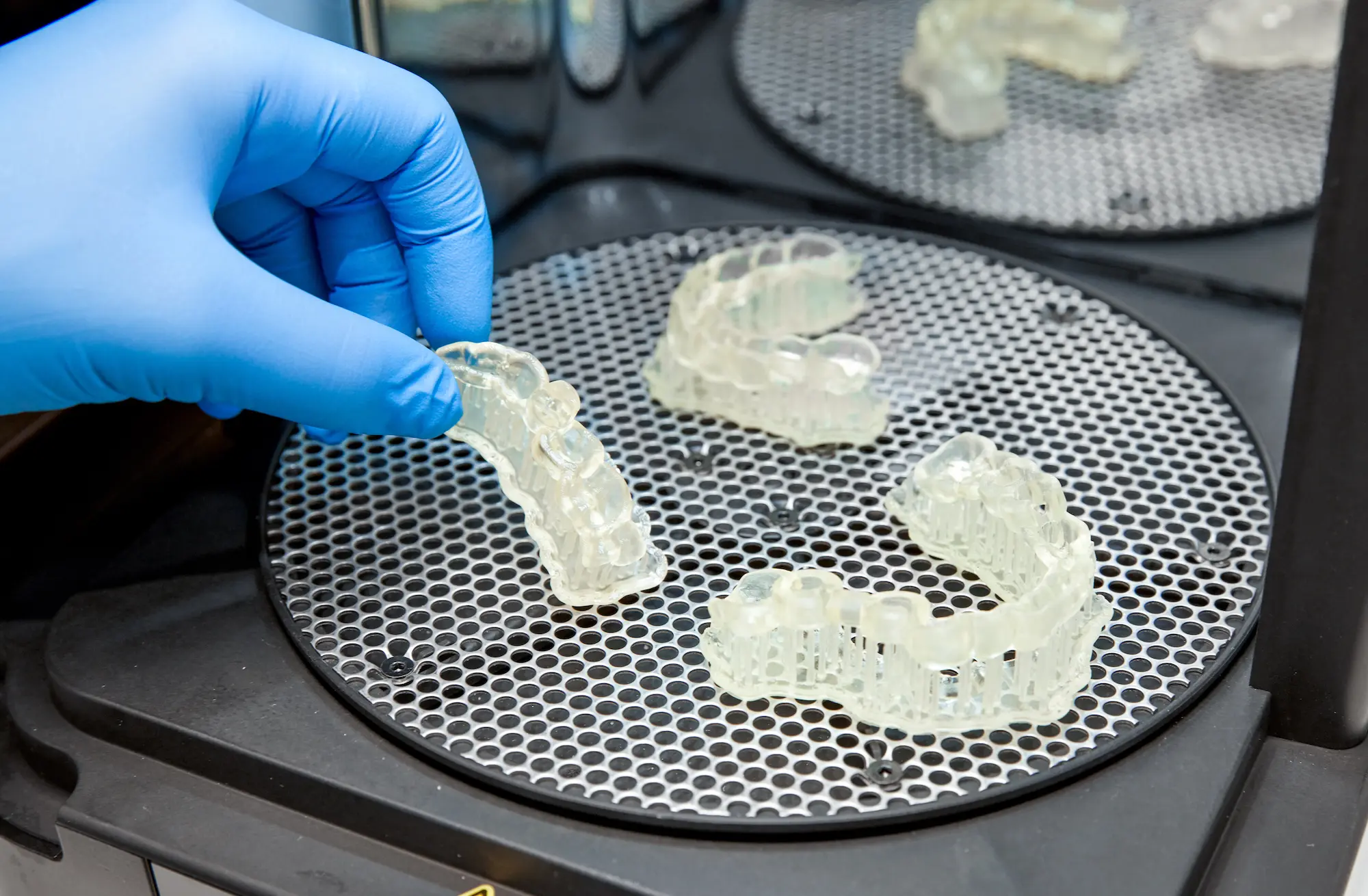
Printed surgical guides must be exposed to light and heat to achieve biocompatibility and optimal mechanical properties. Post-curing is also critical to fully cure the surgical guide to ensure patient comfort and safety. Place the printed guides inside a Form Cure. The post-curing process is dependent on the Formlabs printer used to print the surgical guides. For curing settings, consult the manufacturing guide. Allow the Form Cure to cool down to room temperature between post-cure cycles. During post-curing, a color change from translucent yellow to translucent orange will occur.
CAUTION:
Post-curing outside of the recommended settings impacts mechanical and biocompatibility properties. Post-cure only in accordance with official recommendations from Formlabs for the best possible results.
4.5 Remove Supports
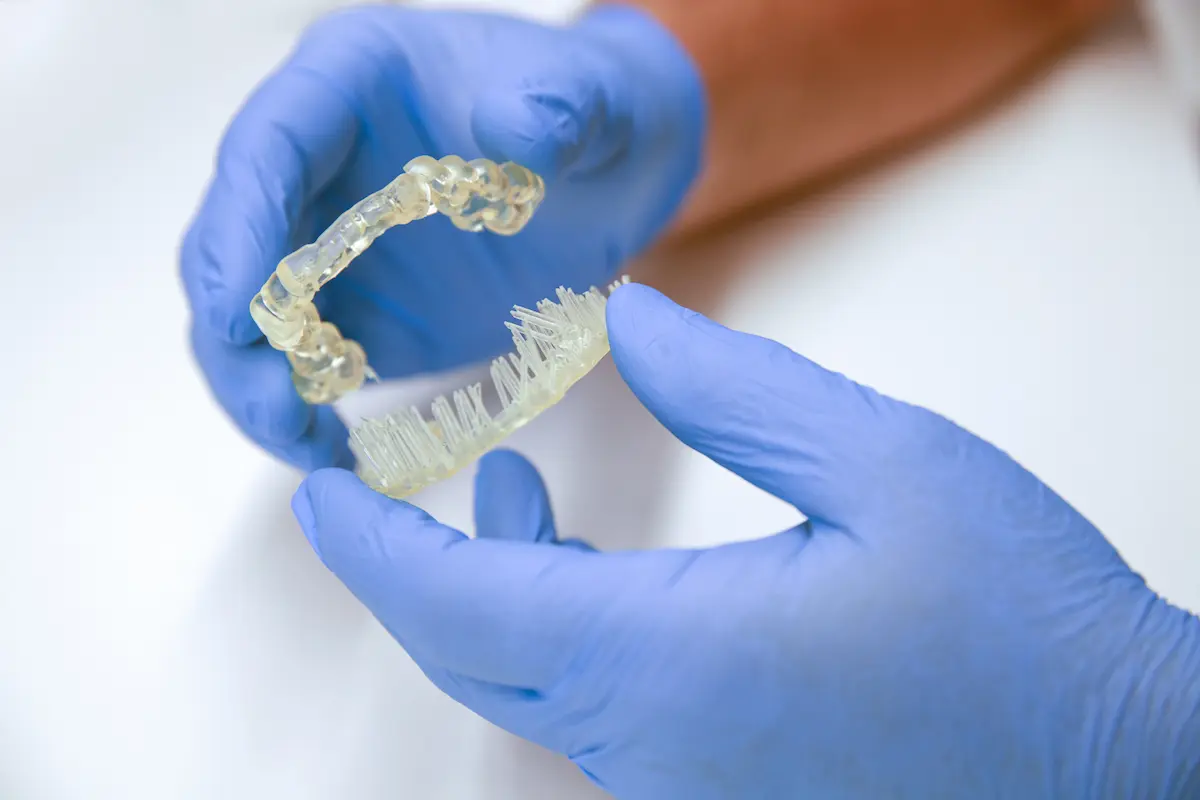
Use the flush cutters included in the Formlabs Finish Kit or appropriate tools to carefully cut the supports at touch points attached to the surgical guide. It is recommended to wear safety glasses.
Though ripping supports from a part may be quicker, it can damage the surgical guide or leave divots. Therefore, we recommend individually cutting supports connected to critical anatomy.
4.6 Optional: Polish Parts
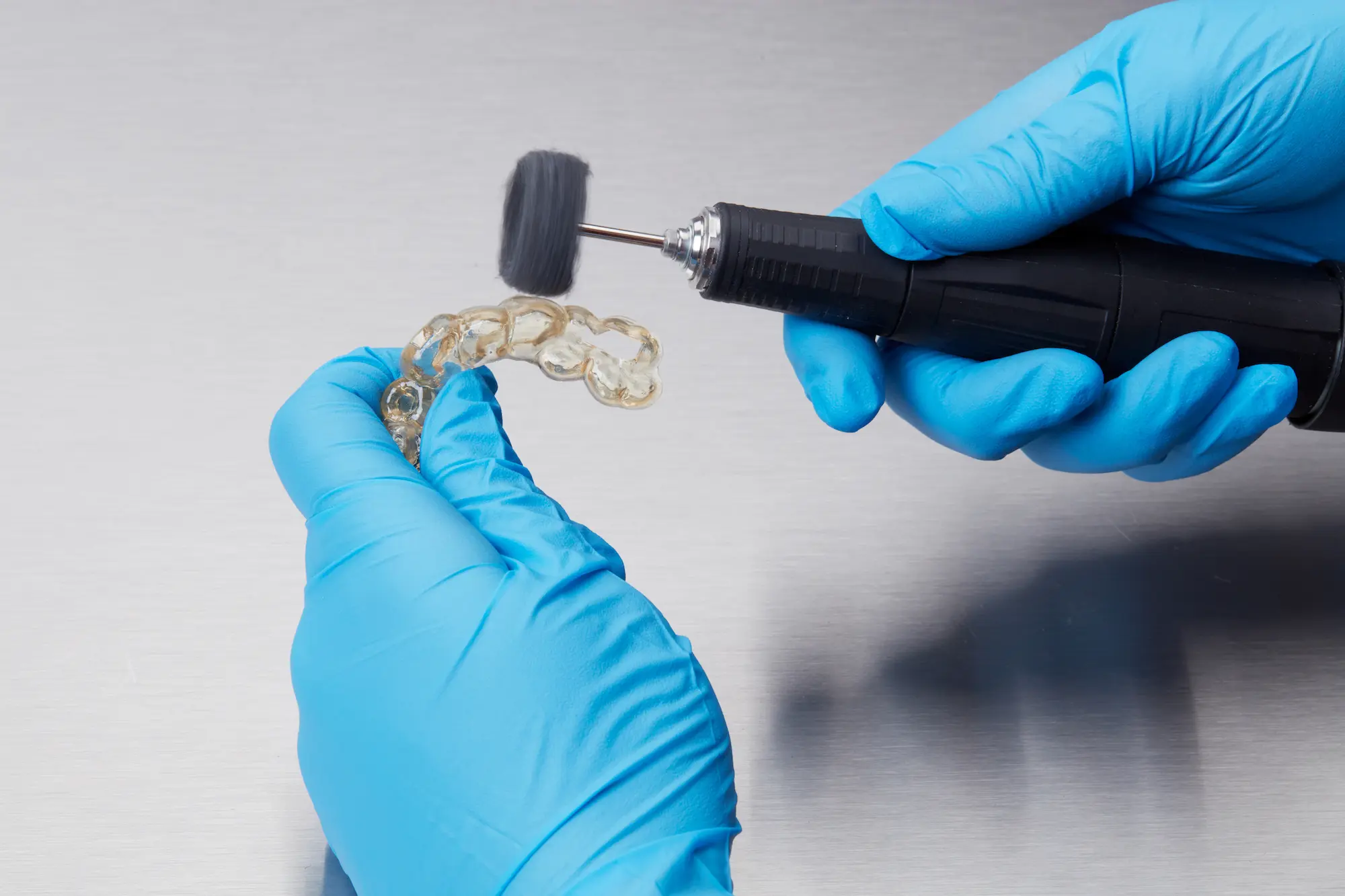
Polish parts using typical dental polishing methods, such as high-grit sandpaper, to smooth support marks for patient comfort. For higher levels of part translucency, polish guides using pumice and a rag wheel or other specialized appliances.
ATTENTION:
Inspect the surgical guides for cracks. Discard if cracks are detected.
Note:
Remove supports only after post-curing to ensure that parts do not warp.
4.7 Assemble the Surgical Guide
Surgical guide sleeves are required to ensure that drill bits do not cut into the printed guide itself. To ensure proper safety and use, assemble printed guides with the surgical guide sleeve selected during design.
When using the recommended design parameters, metal tubes or surgical guide sleeves can be pressed into the guide. Friction holds the metal tube in place. Make sure to only use compatible surgical guide sleeves.
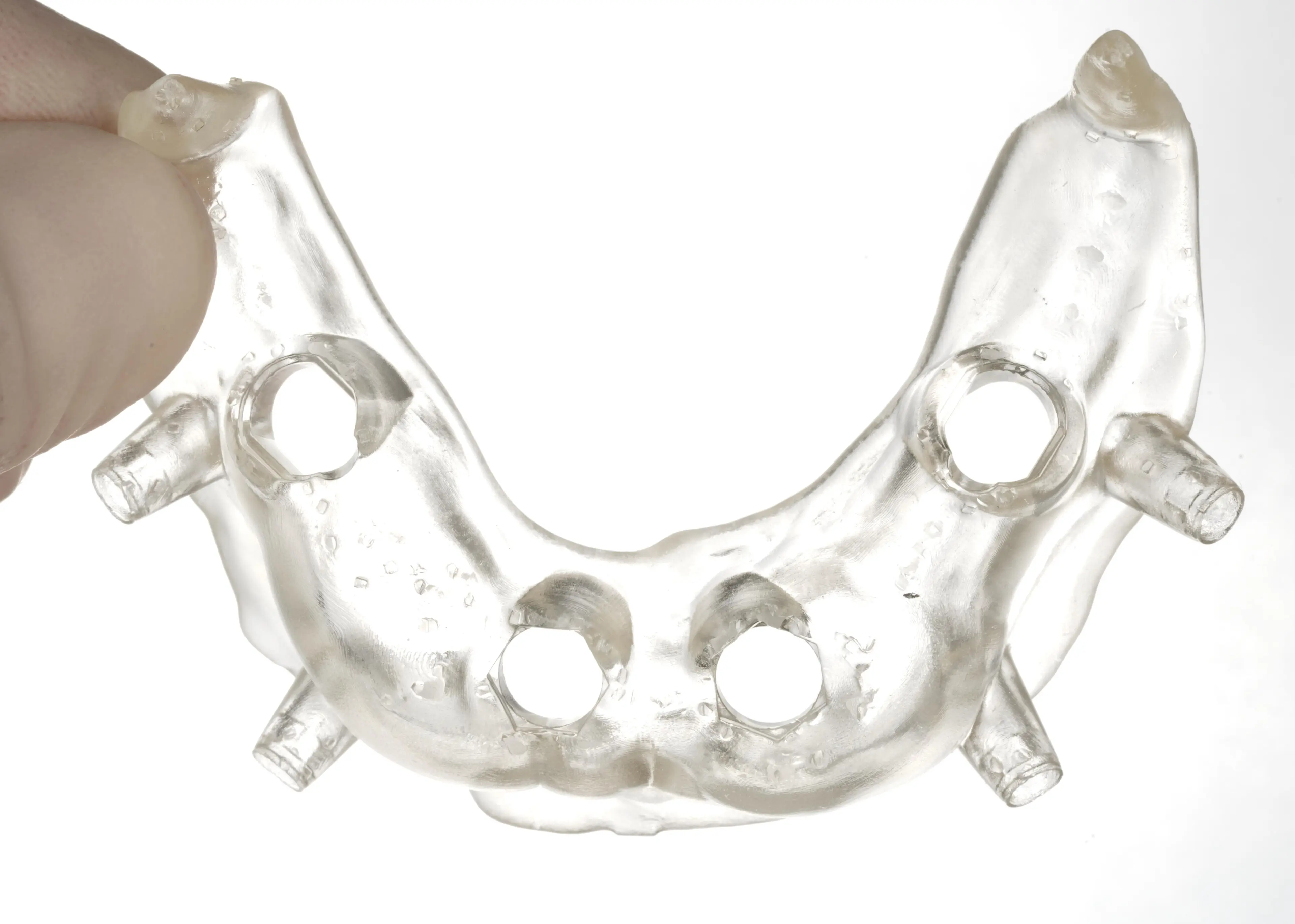
The surgical guide is ready for sleeve insertion.
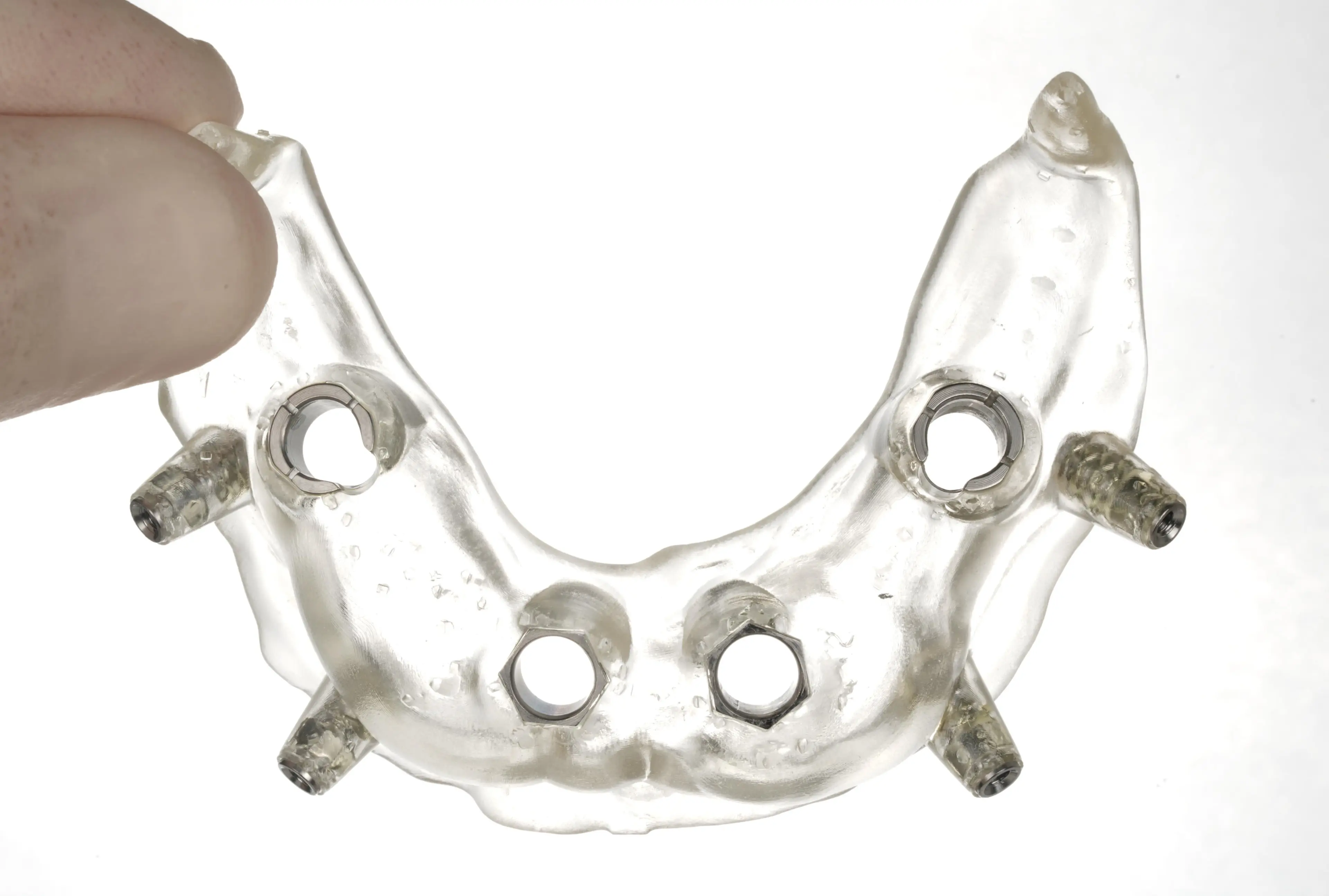
The surgical guide with inserted drilling and pinning sleeves.
5. Use
5.1 Sterilization, Cleaning, and Disinfecting
Surgical Guide Resin printed guides can be sterilized according to CDC-recommended guidelines in industry-standard steam autoclaves, either with or without sterilization pouches. Sterilize according to facility or autoclave manufacturer protocols, or one of the autoclave cycles listed below.
|
AUTOCLAVE TYPE |
TEMPERATURE |
TIME |
|
Pre-Vacuum Steam Sterilizer |
132 °C / 270 °F |
4 min |
|
Gravity Displacement |
121 °C / 250 °F |
30 min |
Note:
Do not exceed autoclave cycles, as longer and hotter autoclave cycles may result in degradation of the surgical guide's mechanical properties and accuracy.
Autoclave cycles must include a dry cycle to maintain the best accuracy. For example, according to CDC guidelines, wrapped instruments sterilized in a prevacuum autoclave must be dried for 20-30 minutes. After autoclaving, parts will change in color from translucent orange to translucent light yellow.
If cleaning or disinfection methods are preferred or required, use facility protocols. Tested methods of disinfection include soaking the finished product in fresh 70% IPA for five minutes.
Note:
Do not leave surgical guides in alcohol solution for an extended period of time, as it may lead to degradation of mechanical properties and accuracy.
After disinfection or sterilization, inspect the printed part for cracks to ensure the integrity of the surgical guide is maintained prior to use in patients.
5.2 Perform Procedure
Execute the procedure with precision using the surgical guide.
6. Biocompatibility
Surgical Guide Resin is non-cytotoxic, not a sensitizer, non-irritating, and complies with ISO 10993-1:2018.
7. Formlabs Printer Compatibility for Surgical Guide Resin
8. Supporting Documents
Additional Resources
Explore Formlabs dental resources for in-depth guides. step-by-step tutorials, white papers, webinars, and more.
Dentistry Made Easier
Form 4B is a blazing fast dental 3D printer that offers the most diverse materials library for dentistry and orthodontics. Create high-quality dental models and biocompatible appliances fast, with easy workflows, leading reliability, and stunning part quality using the Form 4B ecosystem.